Author: Wasil Abdal

  • How to Use a VPN on Android: A Simple Setup Guide

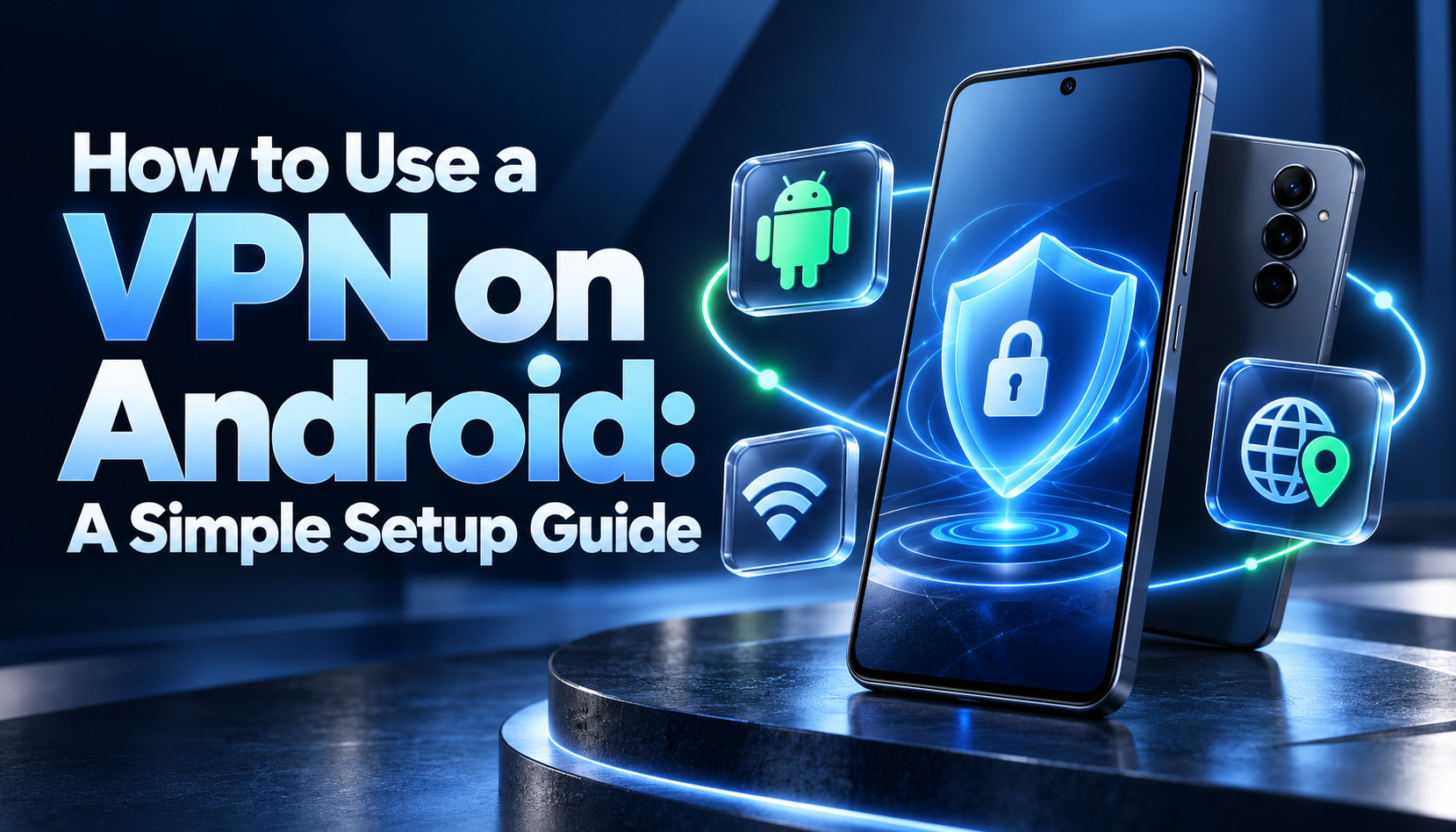
    How to Use a VPN on Android: A Simple Setup Guide

    To use a VPN on Android, install a trusted VPN app, sign in if required, choose a location, and tap Connect. Android will ask you to approve the VPN connection when the app first needs it.

    Once connected, traffic routed through the VPN travels through an encrypted connection between your phone and the VPN service. Websites receiving that traffic generally see the VPN’s public IP address instead of your usual network IP.

    The basic process is straightforward. The parts that can cause confusion are finding the right Android settings, understanding the connection request, and checking that the VPN is working.

    Before You Start

    You need an internet connection and access to a VPN service. For most personal phones, the provider’s Android app is the simplest way to get started.

    If you are choosing a service, check its privacy policy, supported devices, data allowance, and available connection controls. A free download does not necessarily mean the service includes free VPN use.

    You can explore KlarVPN for Android to see its features and reach the official Google Play download.

    For a company or school VPN, follow the instructions from your administrator. A personal VPN subscription does not give you access to an organisation’s private network.

    How to Set Up a VPN on Android

    1. Install the Official VPN App

    Use the download link on the provider’s official website to reach its app listing. Check the app name and developer information before installing.

    Avoid downloading an app from an advertisement or an unfamiliar website simply because it promises free access. If Google Play says your device is incompatible, check the provider’s supported Android versions.

    2. Open the App and Sign In

    Launch the app and create an account or sign in, depending on the service.

    With KlarVPN, open your account and follow the setup prompts. Check which plan is active so you understand any data allowance before starting large downloads or long video sessions.

    3. Choose a VPN Location

    Select an available location in the app.

    If your main goal is everyday connection privacy, start with a nearby location. A shorter network route can help performance, although speed also depends on your internet connection and the VPN service.

    Choose another country when you specifically need an IP address associated with that location. This changes the network address websites see; it does not move your phone’s GPS location or change your account country.

    4. Approve Android’s Connection Request

    Tap Connect and approve the Android VPN request when it appears. Some apps display this request earlier in their setup process.

    The request lets the app create a VPN connection and route traffic through it. This is a normal part of Android VPN setup, but approve it only for the app you intended to install.

    Android requires this approval before a VPN app becomes active for the first time.

    5. Wait for the Connection to Finish

    Wait until the app reports that the VPN is connected before continuing.

    Android may also display a key icon, VPN indicator, or connection information in Quick Settings. The appearance varies by device.

    A connection indicator does not tell you everything about traffic routing or the provider’s privacy practices. Check the connection after setup.

    Where to Find VPN Settings on Android

    You can normally connect through the VPN app without manually adding a profile in Settings.

    To inspect saved VPN connections, these are common paths:

    Device Common settings path
    Many Android phones, including Pixel Settings → Network & internet → VPN
    Samsung Galaxy Settings → Connections → More connection settings → VPN

    Menu names vary with the manufacturer and software version. Search Settings for “VPN” if neither path matches your phone.

    Google’s Android VPN instructions and Samsung’s VPN settings guidance explain their respective menus.

    Understand Always-on VPN and Connection Blocking

    These settings serve different purposes:

    • Always-on VPN: Android attempts to keep a supported VPN service running.
    • Block connections without VPN: Android blocks network traffic that would otherwise bypass that VPN.
    • Auto-Connect: An app may offer its own rules for connecting automatically.

    Availability depends on the app, Android version, and device. An option may be unavailable when the app does not support it.

    Connection blocking also explains why your phone may lose internet access when the VPN cannot connect. The setting can be doing its job rather than indicating a broken Wi-Fi connection.

    For a work-managed phone or profile, ask your administrator before changing enforced settings.

    Check That Your Android VPN Is Working

    Start with a simple public IP comparison:

    1. Before connecting, use a public IP checker and note the address it reports.
    2. Connect the VPN.
    3. Refresh the checker in the same browser.
    4. Compare the result with the original address.

    For a VPN configured to route that browser’s internet traffic, the checker should normally show a VPN IP.

    The reported city is less dependable than the address itself because location databases can be inaccurate. A website showing an unexpected city does not, by itself, prove the connection failed.

    If your usual public IP still appears, confirm that the VPN is connected and that the browser has not been excluded from it.

    An IP check confirms what that browser connection exposes. It is not a complete test of every app, DNS handling, or connection failure behaviour. See how to check if your VPN is working for a broader verification process.

    Change Locations or Turn the VPN Off

    To change locations, open the app, choose another available location, and reconnect if prompted. Check the connection status before resuming your activity.

    To turn it off, use Disconnect in the app. You can also manage the connection through Android’s VPN settings, although Android may direct you back to the app.

    Closing the app’s screen does not necessarily disconnect the VPN.

    If the VPN reconnects after you deliberately disconnect it, review the app’s Auto-Connect rules and Android’s Always-on VPN setting. Where connection blocking is enabled, internet access may remain blocked until the VPN reconnects or you change that setting.

    Turning connection blocking off allows traffic to use your ordinary connection again.

    Can You Set Up an Android VPN Manually?

    Yes, when your phone supports the required configuration and your provider or administrator supplies the details.

    Manual setup usually involves:

    1. Opening the VPN settings and selecting the option to add a profile.
    2. Entering the supplied server, VPN type, and authentication details.
    3. Saving the profile.
    4. Selecting it and connecting.

    The available fields and supported connection types vary. Some services require a separate app or configuration file instead of a profile in Android’s built-in menu.

    Do not guess the server address or copy credentials from an unfamiliar website. Adding an empty VPN profile does not create a working VPN service.

    For KlarVPN, use the Android app. These general manual instructions do not imply that KlarVPN supports a particular built-in Android profile type.

    Fix Common Android VPN Problems

    Start with the symptom you can observe.

    Problem What to check
    The VPN will not connect Confirm your phone has internet access, check your account or allowance, update the app, and try another available location.
    Another VPN starts instead Review other VPN apps and Always-on settings. Android allows one active VPN service per user or profile.
    The VPN connects, but nothing loads Check whether connection blocking is preventing traffic while the tunnel is unavailable. Try reconnecting or selecting another location.
    It disconnects after the screen locks Check the phone’s app battery and background restrictions using your manufacturer’s instructions. Menu names vary.
    One app stops working Check whether that service restricts VPN access. Try a location consistent with your normal account use; access is not guaranteed.
    The connection feels slow Try a closer location and compare performance on Wi-Fi and mobile data. The underlying network may be the limiting factor.

    After making a change, reconnect and repeat the same check. Changing several settings at once makes it harder to identify the cause.

    If you contact support, include your phone model, Android version, VPN app version, and the exact error message. Do not send your password.

    Using KlarVPN on Android

    KlarVPN is an option if you want a VPN app with an individual encrypted tunnel and a dashboard showing session and bandwidth information.

    Its individual tunnel uses session-specific encryption keys. This is different from an exclusive public IP address, which may still be shared.

    The Free plan currently includes 3 GB per month, with every advertised location available across all plans, including Free.

    KlarVPN’s Privacy Policy states that it does not retain browsing history, DNS queries, or destination IP activity logs. It also explains the account information, usage totals, temporary connection metadata, and optional diagnostics the service processes.

    A VPN still has limits. It does not prevent phishing, remove malware, or stop a website from recognising an account you sign into. Keep Android and your apps updated and continue using normal account security.

    Start With Setup, Then Verify the Connection

    Using a VPN on Android involves more than installing an app. Approve the connection, choose a suitable location, check the result, and understand what happens if the VPN disconnects.

    To try KlarVPN, visit Download KlarVPN for Android, install the official app, and connect to an available location.
  • How to Use a VPN on iPhone: A Simple Setup Guide

    How to Use a VPN on iPhone: A Simple Setup Guide

    To use a VPN on your iPhone, install a VPN app, sign in, choose a location, and connect. During the first connection, iOS may ask permission to add a VPN configuration. Once you approve the request and the connection becomes active, you can browse normally.

    You do not usually need to enter server addresses or change advanced network settings. Apps such as KlarVPN handle that configuration for you.

    This guide explains the setup process, how to check your connection, and what to do if the VPN will not connect.

    What happens when you turn on a VPN?

    A VPN creates an encrypted connection between your iPhone and a VPN service. Traffic routed through that tunnel then continues to its destination. Websites receiving it generally see the VPN’s public IP address instead of your usual network IP.

    This can give you more privacy from the network you are using and let you connect through another region. Your VPN provider becomes part of the connection, so its privacy practices matter.

    A VPN still needs a working Wi-Fi or mobile data connection. Installing one does not give you internet access or replace your mobile data plan.

    Choose the right setup method.

    For most personal use, the provider’s official app is the simplest option. It handles the connection settings and usually lets you choose locations without entering server details.

    Manual setup is useful when an organisation or provider gives you a specific configuration. Some connections instead require a separate client app and an imported file.

    Method What you need When to use it
    Provider’s VPN app The official app and an account or plan where required Everyday personal use
    Manual or supplied configuration Exact instructions and connection details from the administrator or provider Work, school, or a specific supported VPN system

    Apple’s VPN overview describes both provider apps and organisational configurations.

    How to set up a VPN on iPhone with an app

    1. Download the official app

    Find your provider in the App Store, or follow the App Store link on its official website. Check the developer name and compatibility requirements before installing.

    If you want to use KlarVPN, visit the KlarVPN for iPhone page. It explains the iOS app’s features and provides the official App Store download link.

    Before accepting a subscription, check the data allowance and billing terms. An app being free to download does not necessarily mean every connection or feature is free.

    2. Open the app and sign in

    Launch the app and follow its account instructions. Depending on the service, you may need to create an account, sign in, or select a plan.

    With KlarVPN, create an account or sign in to your existing one. The app handles the connection configuration, so you do not need to find a server address or enter technical settings yourself.

    3. Choose a VPN location

    Some apps offer an automatic connection option; others ask you to choose a country or server.

    In KlarVPN, select an available location before starting the connection. A nearby location is a reasonable starting point for everyday browsing. Choose another country when you specifically need an IP address associated with that region.

    A VPN location changes where the routed connection appears to originate. It does not change your physical GPS position or automatically update the country attached to your accounts.

    4. Approve the VPN configuration

    Start the connection and follow the iOS prompts.

    When asked to add a VPN configuration, check which app is requesting it. If it is the app you intended to install, tap Allow and complete any device authentication requested.

    The warning may mention filtering or monitoring traffic. This reflects the role a VPN can play in your connection, which is why choosing a provider with clear privacy practices matters.

    If you declined permission, reopen the app and try connecting again. Follow its instructions if you need to repeat setup.

    5. Check that the VPN is connected

    Wait until the app reports an active connection before relying on it.

    A downloaded app or saved VPN configuration is not the same as a connected VPN. If the app is still connecting or displays an error, use the troubleshooting steps below.

    In KlarVPN, you can also open the Transparency Dashboard to view session and bandwidth-usage information. This helps you keep track of your connection and allowance, although it is not a complete security or leak test.

    How to check your VPN connection

    Start with the connection status in the app. You can also open Settings and search for VPN to locate the system connection controls.

    For a basic IP check, compare the public IP reported by the same checking service before and after connecting. Use the same underlying network for both checks. The result should be consistent with your selected VPN connection.

    An IP check has limits. Location databases may be inaccurate, and another privacy service can affect what the browser reports. For example, iCloud Private Relay uses temporary IP addresses for supported browsing traffic.

    A changed IP alone does not prove that every app is using the VPN or that no leaks are possible.

    Our guide to checking whether your VPN is working explains IP, DNS, and browser checks in more detail.

    How to turn a VPN off or change locations

    To disconnect, open the VPN app and use its disconnect control. To change locations, select another available country or server and follow the app’s connection instructions.

    If the VPN reconnects automatically, check its automatic connection or on-demand settings. The label and behaviour depend on the app and configuration.

    On a work or school phone, an administrator may control these settings. Ask before changing or removing a managed profile.

    Some services also offer a kill switch, which helps prevent traffic from continuing outside the VPN after an unexpected disconnection. Availability and behaviour vary by app and platform.

    Apple’s managed Always On VPN is a separate feature for supervised devices. It should not be confused with an ordinary app’s automatic connection setting.

    How to add a VPN manually in iPhone Settings

    Use manual setup only when your provider or administrator supplies a supported configuration.

    The usual route is:

    1. Open Settings → General → VPN & Device Management → VPN.
    2. Tap Add VPN Configuration.
    3. Choose the connection type specified in your instructions.
    4. Enter the supplied server details, identifiers, and authentication information.
    5. Save the configuration and connect as instructed.

    Menu wording can vary by iOS version and device management. Some setups require certificates or a separate client app, so follow the instructions for that particular service.

    Do not copy server addresses or credentials from an unrelated tutorial. The information must belong to the VPN you are authorised to use.

    For KlarVPN, use the iPhone app. These general manual configuration steps do not mean KlarVPN supports connections through the native settings form.

    What to try if your iPhone VPN will not connect

    First, check whether the underlying internet connection works without the VPN. If it does, try another available VPN location and reconnect.

    Next, update the VPN app and iOS, then restart the phone. Compare Wi-Fi with mobile data to see whether the problem affects one network or both.

    Other VPNs or network-filtering tools can also affect connectivity. Apple recommends https://support.apple.com/en-us/102281 when diagnosing connection problems. Consult your administrator before changing settings on a managed device.

    If the problem continues, contact your provider with the app version, iOS version, selected location, and exact error. Do not include your password or authentication codes.

    Choosing KlarVPN for your iPhone

    If you are looking for an iPhone VPN, KlarVPN offers an app-based connection with an individual encrypted tunnel and session-specific keys. An individual tunnel does not mean you receive an exclusive public IP address.

    Its Transparency Dashboard shows session and bandwidth-usage information. According to KlarVPN’s privacy policy, the service does not store browsing history, DNS queries, or destination IP activity logs. The policy separately describes account information, usage counters, temporary connection metadata, and optional diagnostics.

    The free plan currently includes 3 GB each month, with all advertised VPN locations available on every plan, including Free. You can start with that allowance and consider a paid plan if you need more data.

    What to remember after setup

    A VPN can change your visible IP address and protect traffic carried through its tunnel, but it does not make your iPhone anonymous. Websites and apps can still recognise you through account logins, cookies, device information, and location permissions.

    It also does not guarantee access to a streaming, banking, or regional service. Keep your software updated and continue using normal account-security precautions.

    For everyday use, the routine is straightforward: connect, check the status, and choose the location that suits your task.

    If you want to get started, download VPN for iPhone through the official iOS page.

  • KlarVPN vs Proton VPN: Which Privacy VPN Fits You Better?

    KlarVPN vs Proton VPN: Which Privacy VPN Fits You Better?

    If you’re comparing KlarVPN vs Proton VPN, don’t start with server counts.

    Start with the reason you’re buying a VPN in the first place.

    You probably want your connection to be private, your browsing activity not to become a log, and the VPN provider itself to be something you can trust.

    Both services take privacy seriously. But they solve the trust problem differently.

    Proton VPN leans on scale, open-source apps and independent audits.

    KlarVPN gives you an isolated encrypted tunnel, shows you what it stores through a Transparency Dashboard, lets you rebuild your VPN-side session with Refresh, supports unlimited devices, and starts at $2.99 on a real month-to-month paid plan.

    For users who want a VPN they can understand, inspect and control without committing to a long subscription, KlarVPN is the better fit.

    Proton still makes more sense if your priorities are unlimited free data, a huge server network, open-source apps or a broad collection of advanced VPN features.

    That is the comparison that actually matters.

    KlarVPN vs Proton VPN: Quick Answer

    Choose KlarVPN if you want:

    • Your own session-isolated encrypted tunnel
    • A Transparency Dashboard showing what KlarVPN keeps about your account
    • Refresh to rebuild your VPN-side session
    • Unlimited devices
    • Simple month-to-month pricing
    • Gold at $2.99/month without a long-term commitment
    • The same core privacy model on the free tier
    • A focused VPN experience without unnecessary complexity

    Choose Proton VPN if you specifically want:

    • Unlimited data on the free plan
    • Open-source VPN apps
    • A long independent-audit track record
    • A much larger server network
    • More advanced power-user features
    • Broad platform coverage today

    For someone choosing a paid VPN for everyday privacy, KlarVPN has the stronger value proposition.

    KlarVPN vs Proton VPN at a Glance

    What Matters KlarVPN Proton VPN
    Free plan 3 GB/month Unlimited data
    Ads on free plan No No
    Device allowance Unlimited 1 Free / up to 10 paid
    Session-isolated private tunnel Yes No equivalent product claim found
    User-facing privacy dashboard Yes No comparable dashboard
    Kill Switch Yes Yes
    Auto protection Auto-Connect Supported VPN automation features
    Gold / paid monthly price $2.99/month $9.99 one-month VPN Plus
    Lowest advertised paid rate requires long prepayment No Yes
    Independent no-logs audits Not equivalent today Yes
    Server-network scale Smaller, focused Much larger
    Advanced feature breadth Focused Broader

    KlarVPN currently offers Free with 3 GB per month, Gold at $2.99/month for 250 GB, and Platinum at $7.99/month for unlimited personal usage. The current plans include unlimited devices, a private tunnel, Transparency Dashboard, Kill Switch and Auto-Connect.

    Proton VPN Plus currently costs $9.99 for one month, with lower effective monthly prices available when you pay for longer terms upfront.

    That already tells you something important:

    These two VPNs are not competing on exactly the same idea of value.

    The Better Question Isn’t “Which VPN Is Bigger?”

    Proton is bigger.

    It has been around longer, has a much larger network and offers more advanced features.

    If size were the only thing that mattered, there would not be much to discuss.

    But most people do not use a VPN because they want the biggest VPN company.

    They use one because they want:

    • A private connection
    • Less exposure on unfamiliar networks
    • A different visible IP
    • Confidence that browsing activity is not being stored
    • Simple controls
    • A reasonable price
    • Protection across the devices they use

    Those are exactly the areas where KlarVPN becomes more compelling.

    1. KlarVPN Lets You See the Privacy Relationship

    Every VPN eventually asks you to believe something.

    Usually it is:

    “We don’t log your activity.”

    Proton supports that claim with open-source apps and repeated independent audits. Its 2026 no-logs audit reported no evidence that the reviewed infrastructure stored browsing activity, DNS queries, destination services, traffic contents or user-identifiable connection metadata.

    That is a real strength.

    KlarVPN approaches the same trust problem differently.

    Open the Dashboard

    KlarVPN gives users a Transparency Dashboard showing the information associated with their account.

    Its current privacy policy says the service meters total bandwidth because the plans have usage allowances. While you are actively connected, limited session information is temporarily required to operate the connection.

    KlarVPN says it does not retain:

    • Browsing history
    • DNS queries
    • Destination IP addresses
    • Domains visited
    • Contents of VPN traffic

    The temporary connection metadata is removed after the VPN session ends.

    That means you are not limited to reading a sentence saying:

    We don’t log.

    You get a product designed around showing you what exists.

    Why That Matters

    Most VPN users are not security researchers.

    They are not going to read source code.

    Many will never open an audit PDF.

    But they can open a dashboard.

    That is where KlarVPN’s approach becomes practical.

    Proton offers stronger external verification today.

    KlarVPN offers something unusually direct:

    privacy information surfaced to the person actually using the VPN.

    For everyday users, that can be the more useful form of transparency.

    2. KlarVPN Makes Your Tunnel the Product

    Most VPN services are marketed around servers.

    Pick a country.
    Pick a server.
    Connect.

    KlarVPN puts more emphasis on the actual encrypted path carrying your traffic.

    When you connect, KlarVPN provisions a session-isolated encrypted tunnel with session-specific keys.

    That does not mean you receive your own permanent public IP.

    The public VPN IP can still be shared.

    What is isolated is the tunnel carrying your session.

    That’s an important distinction:

    Dedicated tunnel ≠ dedicated IP.

    KlarVPN’s model is about giving your connection its own encrypted session rather than making a massive shared server list the centre of the experience. Its own product pages position this private-tunnel architecture as a core feature on both free and paid plans.

    Proton uses strong VPN protocols, modern encryption and mature infrastructure. Nothing here suggests otherwise.

    The difference is simpler:

    Proton makes its network one of the main reasons to choose it.

    KlarVPN makes your individual connection one of the main reasons to choose it.

    For privacy-focused users, that is a meaningful difference.

    Read more about what a dedicated VPN tunnel means.

    3. Refresh Tunnel Gives You Direct Control Over a Fresh VPN Session

    Sometimes you do not want another server.

    You want a fresh session.

    That is what Refresh Tunnel is designed for.

    When you Refresh a KlarVPN connection, the VPN-side tunnel is torn down and rebuilt with:

    • Fresh session keys
    • A new VPN IP
    • A refreshed tunnel fingerprint

    It gives you a clear user action for saying:

    Start this VPN-side identity again.

    Proton lets users reconnect and move between servers, and secure VPN protocols naturally create new cryptographic sessions.

    But KlarVPN turns the concept into a feature you control directly.

    You do not need to understand what is happening under the hood.

    You press Refresh.

    The existing tunnel goes away.

    A fresh one replaces it.

    That simplicity fits KlarVPN’s broader philosophy: make privacy controls visible instead of hiding everything behind a Connect button.

    4. KlarVPN’s $2.99 Price Actually Means $2.99 This Month

    VPN pricing is full of numbers that look cheaper than they really are.

    A provider may advertise:

    $2.99/month

    but require payment for 24 months upfront.

    Those are very different purchases.

    KlarVPN Pricing

    Plan Price Usage
    Free $0 3 GB/month
    Gold $2.99/month 250 GB
    Platinum $7.99/month Unlimited personal usage

    KlarVPN’s current pricing page lists Gold at $2.99 per month without requiring a multi-year purchase to reach that price.

    Proton VPN Pricing

    Proton VPN Plus currently lists:

    Term Effective Price
    1 month $9.99/month
    12 months $3.99/month
    24 months $2.99/month

    The lower prices require paying for the longer term upfront.

    That makes the comparison much clearer.

    If you want to pay month to month:

    KlarVPN Gold: $2.99

    Proton VPN Plus: $9.99

    That is a significant difference.

    Even KlarVPN Platinum’s $7.99 monthly price is lower than Proton’s current one-month VPN Plus price.

    Proton’s long-term plans can still make sense if you are comfortable paying upfront.

    But KlarVPN is much more attractive if your mindset is:

    Try the service. Keep paying while it works for me. Don’t lock me in for two years.

    5. Unlimited Devices Makes KlarVPN Easier to Live With

    A VPN should not make you count devices.

    People move between phones, tablets, computers and other connected devices.

    Households often have even more.

    KlarVPN currently includes unlimited devices on Free, Gold and Platinum.

    Proton VPN Free currently allows one active device, while its paid VPN offering supports up to 10 devices at once.

    Ten devices may be enough for many people.

    But unlimited is simpler.

    There is no device math.

    No wondering whether another connection uses up a slot.

    No need to make the plan more expensive just because you own more hardware.

    As KlarVPN expands to additional platforms, that unlimited-device model becomes even more valuable.

    For the latest supported apps, check the KlarVPN download page.

    6. Proton Wins the Free-Data Contest. KlarVPN Wins the Upgrade Story.

    This section is easy.

    Proton VPN Free offers unlimited data.

    KlarVPN Free gives you 3 GB each month.

    If your goal is:

    “I want to use as much VPN data as possible without ever paying.”

    Proton is the better choice.

    No clever comparison changes that.

    But that is only one type of buyer.

    KlarVPN Free is designed to let you experience the product’s actual privacy model before upgrading.

    Free users still get:

    • Private tunnel
    • Transparency Dashboard
    • Kill Switch
    • Auto-Connect
    • Unlimited devices
    • No ads

    So the free plan is not a separate privacy product.

    The limitation is bandwidth.

    Then, if you decide the product works for you, Gold is $2.99 per month.

    This makes the customer journey much simpler:

    Try KlarVPN → inspect the dashboard → use the tunnel → upgrade only if you need more data.

    For users actively deciding which VPN is worth paying for, that path can be more attractive than choosing a service solely because its free bandwidth is unlimited.

    7. Do You Need Thousands of Servers or a VPN You Understand?

    Proton currently advertises a very large server network spanning 100+ countries on VPN Plus, at the time of writing. 

    That is a major advantage if server choice is important to you.

    KlarVPN’s network is smaller.

    But bigger is only useful when you actually need it.

    Most people do not manually rotate through 100 countries.

    Their VPN behaviour is much simpler:

    • Connect nearby for everyday privacy
    • Use a familiar region
    • Change location occasionally
    • Protect connections while travelling
    • Leave the VPN running

    If you require a specific country that KlarVPN does not currently support, Proton is the obvious answer.

    But if the locations you need are available, the number of servers in the catalogue becomes less important than:

    What happens when you connect?

    That is where KlarVPN puts its effort.

    Your tunnel.

    Your session.

    Your dashboard.

    Your controls.

    8. Proton Has More Features. That Doesn’t Mean You Need Them.

    Proton VPN has a mature collection of advanced features, broader platform support and a more extensive network.

    Power users may genuinely need those capabilities.

    KlarVPN is more focused.

    Its core experience revolves around:

    • Connect
    • Select a location
    • Use your private tunnel
    • Check the Transparency Dashboard
    • Auto-connect when needed
    • Use Kill Switch protection
    • Refresh when you want a fresh session

    There is value in that focus.

    VPNs can become overloaded with security features that sound impressive on a pricing table but rarely get touched after installation.

    KlarVPN is easier to explain because the product is centred around a handful of things people actually understand.

    Private connection.

    Visible privacy.

    Control over the session.

    Simple pricing.

    For many people, that is enough.

    9. Where Proton VPN Is Still the Better Choice

    A credible comparison should make this easy to find.

    Proton is likely the better fit if:

    • You intend to stay on a free plan and need unlimited bandwidth
    • Open-source apps are a requirement
    • Independent third-party audits are your primary trust criterion
    • You need Proton’s larger country and server selection
    • You rely on a platform or device KlarVPN does not yet support
    • You specifically want Proton’s advanced premium features

    Those are legitimate reasons to choose it.

    But they are also relatively specific requirements.

    If they are not your priorities, KlarVPN’s advantages become much more relevant.

    10. Where KlarVPN Makes More Sense

    KlarVPN is likely the better choice if your thinking sounds like this:

    “I want to see what my VPN knows about me.”

    That’s what the Transparency Dashboard is for.

    “I want my VPN session isolated.”

    KlarVPN gives each connection its own encrypted tunnel.

    “I don’t want to buy two years just to get a reasonable price.”

    Gold is $2.99 month-to-month.

    “I use a lot of devices.”

    KlarVPN allows unlimited devices.

    “I want to try the real product before paying.”

    The Free plan includes KlarVPN’s core privacy features.

    “I want privacy without turning VPN software into a hobby.”

    That is probably the strongest KlarVPN use case of all.

    It is a VPN designed to be understood.

    KlarVPN vs Proton VPN: Which Should You Choose?

    Here is the decision without the marketing noise.

    You care most about… Better fit
    Visible account-level privacy KlarVPN
    Session-isolated private tunnel KlarVPN
    Rebuilding your VPN-side session KlarVPN
    Unlimited devices KlarVPN
    Low month-to-month price KlarVPN
    No long-term commitment KlarVPN
    Simple everyday VPN experience KlarVPN
    Unlimited free bandwidth Proton VPN
    Open-source VPN apps Proton VPN
    Independent audit history Proton VPN
    Huge global server network Proton VPN
    Advanced power-user features Proton VPN

    For most users who are actually ready to pay for a VPN, KlarVPN wins on the things they will notice every month:

    what they pay, how many devices they can use, what they can see about their data, how their tunnel works, and how much control they have over it.

    Proton is the more mature ecosystem.

    KlarVPN is the more focused privacy product.

    That distinction is important.

    The Bottom Line

    Proton VPN is a strong VPN.

    KlarVPN does not need Proton to be bad to be the better choice for many people.

    It just needs to answer a different question better:

    What should a modern privacy VPN feel like to the person actually using it?

    KlarVPN’s answer is:

    Your own encrypted tunnel.

    A dashboard showing what your VPN knows.

    Refresh when you want a fresh session.

    Unlimited devices.

    No ads.

    No long commitment.

    And paid privacy starting at $2.99 per month.

    Proton gives you more scale.

    KlarVPN gives you more visibility and control over the part that belongs to you: your connection.

    If that sounds closer to why you wanted a VPN in the first place, there is little reason to decide from a feature table alone.

    Try KlarVPN Free.

    Connect.

    Open the Transparency Dashboard.

    Then decide for yourself.

    Frequently Asked Questions

    Is KlarVPN better than Proton VPN?

    KlarVPN is a better fit for users who value a session-isolated private tunnel, a Transparency Dashboard, Refresh, unlimited devices, simple month-to-month pricing and a focused everyday VPN experience.

    Proton VPN is better suited to users who prioritise unlimited free data, open-source apps, independent audit history, a very large server network or advanced premium features.

    Is KlarVPN Free better than Proton VPN Free?

    It depends on what you mean by better.

    Proton VPN Free wins on data allowance because it currently offers unlimited bandwidth.

    KlarVPN Free provides 3 GB each month, but includes the core KlarVPN privacy experience: private tunnel, Transparency Dashboard, Kill Switch, Auto-Connect, unlimited devices and no ads.

    If you want unlimited free usage, choose Proton. If you want to try KlarVPN’s privacy model before deciding whether its $2.99 monthly paid plan is worth it, KlarVPN Free is the more relevant trial.

    Which is better for privacy, KlarVPN or Proton VPN?

    Both approach privacy differently.

    Proton has the stronger independent-verification record, with open-source apps and repeated external audits. 

    KlarVPN focuses on direct user visibility through its Transparency Dashboard and its session-isolated private tunnel model.

    For users who want privacy information surfaced directly in the product, KlarVPN has a more distinctive approach.

    Which is cheaper month to month, KlarVPN or Proton VPN?

    KlarVPN.

    KlarVPN Gold currently costs $2.99 per month, while Platinum costs $7.99 per month.

    Proton VPN Plus currently costs $9.99 for a one-month subscription. Proton offers lower effective monthly pricing when users prepay for longer terms.

    Is KlarVPN a good Proton VPN alternative?

    Yes.

    KlarVPN is particularly attractive if you want a simpler, privacy-focused VPN with an isolated tunnel, visible account-level transparency, unlimited devices, Refresh and straightforward month-to-month pricing.

    If you need Proton’s larger infrastructure or advanced ecosystem, Proton may still be a better fit. For everyone else, KlarVPN offers a compelling alternative without asking for a long-term commitment.

  • Do You Need a VPN on Android?

    Do You Need a VPN on Android?

    You do not need a VPN on Android for every task.

    Modern Android phones already have strong security features; apps and websites commonly use encrypted connections, and Android includes privacy controls such as app permissions, sandboxing, randomised MAC addresses, and Private DNS.

    But those protections do not do the same job as a VPN.

    A VPN becomes useful when you want more network privacy: protecting your connection on networks you don’t control, hiding your public IP from websites, or keeping the same privacy layer as you move between Wi-Fi and mobile data.

    The easiest way to decide is not to ask:

    “Does every Android phone need a VPN?”

    Ask:

    “What am I trying to protect?”

    When Is a VPN Actually Useful on Android?

    Here is the practical answer.

    Situation Is a VPN useful? Why?
    Airport, hotel, or cafe Wi-Fi Yes Adds an encrypted tunnel on a network you do not control
    Home Wi-Fi you trust Optional Useful for IP and network privacy, but not essential for basic phone security
    4G / 5G mobile data Optional Adds network privacy and replaces your visible carrier IP
    Traveling Useful Protects unfamiliar networks and lets you select a VPN location
    Hiding your real IP from websites Yes Sites see the VPN IP instead of your normal network IP
    Using Android Private DNS Depends Private DNS protects DNS queries, not your full connection
    Using a banking app Usually optional Banking apps already use encrypted connections; a VPN is not a replacement for account security.
    Trying to become completely anonymous No A VPN cannot hide every way apps and websites identify you
    Using a work profile Depends Your employer may already require or configure a work VPN

    If several of the Yes or Useful situations apply to you, using a VPN on Android probably makes sense.

    If you want to see how KlarVPN works on Android, visit our VPN for Android

    Android Security and Network Privacy Are Not the Same Thing

    Android does a lot to protect the phone itself.

    One core protection is the Application Sandbox. Android assigns apps separate identities and isolates them so one app cannot normally read another app’s private data or access protected system resources without permission. Android also requires apps to be signed and uses a permissions system to control access to sensitive features such as contacts, location, microphone, and camera. Android Open Source Project

    Those protections are important.

    But they mainly answer questions such as:

    • Can one app access another app’s data?
    • Can this app use my camera?
    • Can it see my location?
    • Is this app allowed to access a protected Android feature?

    A VPN answers a different question:

    How does my internet traffic leave the phone?

    When a VPN is connected, traffic routed through it travels inside an encrypted tunnel between your Android device and the VPN service.

    That gives you protections Android’s app sandbox alone does not provide, including hiding your normal public IP from websites and reducing what the local network can directly observe about your connection.

    Think of the layers this way:

    Android security protects the device and apps.

    HTTPS protects individual connections to websites and services.

    A VPN protects the network path between your Android device and the VPN service.

    They solve different problems.

    What About Android Private DNS?

    This is where Android users often get confused.

    Android includes Private DNS, and Google recommends leaving it enabled when available.

    Private DNS encrypts the DNS requests your phone makes when it needs to translate a domain such as example.com into an IP address.

    That’s useful.

    But Google is very clear about its limitation:

    Private DNS protects DNS queries and answers only. It does not protect the rest of your internet connection. Google Help

    So Private DNS does not:

    • Replace your public IP with a VPN IP
    • Create a full VPN tunnel
    • Protect all network traffic
    • Give you a selectable VPN location
    • Replace a VPN on public Wi-Fi

    Private DNS and a VPN can therefore coexist.

    One protects DNS resolution.

    The other protects traffic routed through the VPN tunnel.

    Do You Need a VPN on Public Wi-Fi?

    This is one of the clearest use cases.

    Your home Wi-Fi is a network you chose and usually control.

    Airport Wi-Fi is not.

    Neither is the network at a hotel, coffee shop, university, conference centre, shopping mall, or coworking space.

    That does not mean every public hotspot is dangerous. Modern websites and apps generally use encrypted HTTPS connections, which already protect a large amount of sensitive traffic.

    Still, you are using infrastructure you do not control.

    A VPN gives you an encrypted connection between your Android phone and the VPN service before the traffic travels onward.

    That can reduce the amount of trust you need to place in the local network.

    It is especially worth considering when you frequently use:

    • Airport Wi-Fi
    • Hotel Wi-Fi
    • Cafe networks
    • Guest networks
    • University Wi-Fi
    • Coworking spaces
    • Public hotspots

    A VPN does not make phishing sites safe, and it cannot protect you if you willingly enter your password into a fake website.

    It protects the connection.

    Not every decision you make on that connection.

    Do You Need a VPN on 4G or 5G?

    Usually not for basic phone security.

    Mobile networks are different from open public Wi-Fi.

    But a VPN can still be useful when your Android phone uses mobile data.

    Your carrier provides the underlying connection. Without a VPN, the public IP associated with that connection is normally visible to the websites and services you use.

    When you connect through a VPN, websites generally see the VPN’s public IP instead.

    A VPN can also reduce how much network-level information your internet provider can directly associate with your browsing traffic, although the provider can still see that your device is communicating with a VPN service.

    So you might use a VPN over 4G or 5G if you want:

    • More network privacy
    • A different visible IP address
    • The same VPN protection when switching between Wi-Fi and mobile data
    • A selected VPN location while travelling

    You do not need one simply because your phone says 5G.

    For most people, it is a privacy preference rather than an emergency security requirement.

    Six Times a VPN Makes Sense on Android

    Rather than leaving a VPN running because someone told you that you “must,” use it when it solves a real problem.

    1. You’re Using a Network You Don’t Control

    Hotels, airports, cafes, guest Wi-Fi, and public hotspots are obvious examples.

    A VPN reduces how much trust you need to place in that network.

    2. You Want Websites to See a VPN IP

    A VPN replaces your normal visible network IP with the VPN server’s public IP while connected.

    That does not make you anonymous, but it removes one straightforward identifier from the website’s view.

    3. You Travel Frequently

    Travel means unfamiliar networks.

    A VPN gives you a consistent privacy layer whether you are on hotel Wi-Fi, an airport network, or mobile data in another country.

    You can also select from available VPN locations rather than relying only on the IP your current network assigns.

    4. Your Phone Constantly Switches Networks

    Android phones move between Wi-Fi and mobile data all day without much thought from the user.

    If you value consistent network privacy, keeping a VPN connected or using Auto-Connect can reduce the chance that you forget to enable it when joining an unfamiliar network.

    5. You Want Protection Beyond the Browser

    A VPN on Android operates at the device’s VPN connection level rather than acting only as a browser extension.

    Android’s VPN framework can route app traffic through the VPN, and Android also supports per-profile and enterprise VPN configurations. Google Help

    That makes a VPN useful if your concern extends beyond Chrome to other apps that use the connection.

    6. You Want More Control Over Your Network Privacy

    Some users simply do not want every network they connect through to be the default path for their internet traffic.

    That is a reasonable privacy preference.

    A VPN gives you another layer of control.

    When Is Leaving the VPN Off Reasonable?

    There are also times when turning it off is perfectly sensible.

    For example:

    • You are on your trusted home network.
    • A local device such as a printer or smart TV is not reachable through your VPN configuration.
    • A banking or payment service dislikes the VPN IP.
    • A workplace or school network has its own requirements.
    • You want the lowest possible latency for gaming.
    • An app behaves incorrectly while the VPN is active.
    • You simply do not need the additional network-privacy layer at that moment.

    Android itself supports Always-on VPN and, on supported configurations, the ability to block traffic that does not go through the VPN. But whether you should use that strict setup depends on your needs. Google Help

    Keeping a VPN on permanently is a choice.

    Not a requirement for using Android safely.

    Should You Keep a VPN On All Day?

    You can.

    For some people, that is the easiest option.

    Imagine your phone moving through this day:

    Home Wi-Fi → 5G → office Wi-Fi → cafe Wi-Fi → 5G → hotel Wi-Fi

    If your VPN remains connected, you do not need to make a new privacy decision every time the network changes.

    This is where features such as Auto-Connect and a Kill Switch become useful.

    Auto-Connect can help establish VPN protection when you join an unfamiliar network.

    A Kill Switch helps prevent traffic from simply continuing outside the VPN if the protected connection unexpectedly drops.

    Android also has built-in support for Always-on VPN in many configurations. Google Help

    But leaving a VPN on all day is still optional.

    If an app requires your normal connection or the VPN causes compatibility problems, temporarily disconnecting is completely reasonable.

    What a VPN Cannot Protect on Android

    This is just as important as knowing what it can do.

    A VPN protects the network connection.

    It does not turn your Android phone into an invisible device.

    A VPN cannot automatically protect you from:

    Phishing

    If you type your password into a convincing fake login page, a VPN cannot know that you made the wrong choice.

    Malicious Apps

    A VPN does not turn a malicious or badly designed app into a safe one.

    Android’s permissions, Play Protect, app sandboxing, software updates, and good installation habits matter here.

    Account Tracking

    If you log into Facebook, Google, Amazon, TikTok, or another service, that company knows which account you are using.

    Changing your IP does not change the fact that you signed in.

    Cookies and Fingerprinting

    Websites can recognise returning users using cookies, browser characteristics, device signals, and other techniques.

    A VPN changes an important network identifier, your public IP, but not all the other signals.

    GPS Location

    If an Android app has permission to access your precise location, connecting to a VPN server in another country does not automatically change your GPS coordinates.

    Information You Share Yourself

    If you enter your name, address, email, phone number, or payment details into a service, a VPN cannot hide that information from the service receiving it.

    That is why “VPN = anonymity” is the wrong way to think about it.

    A VPN is a network privacy tool.

    A useful one, but still one layer.

    What Should You Look for in an Android VPN?

    Installing a VPN means giving another service an important role in your internet connection.

    So the app itself deserves scrutiny.

    Check the Permissions

    Android permissions are designed to protect access to restricted device data and sensitive actions. A VPN app should be able to explain why it requests anything beyond the permissions required for its features. Android Developers

    If a VPN asks for something unexpected, find out why before approving it.

    Read the Google Play Data Safety Section

    Google Play includes a Data safety section where developers disclose how their app collects, shares, and handles user data.

    It is worth reading before installing any privacy app.

    Google notes that this information is supplied by developers, so it should be considered alongside the provider’s privacy policy and other documentation. Google Help

    Look for a Kill Switch

    Connections can drop.

    A Kill Switch helps prevent traffic from falling back to the normal connection unexpectedly.

    Android also provides system-level VPN controls in some configurations, including Always-on VPN and blocking non-VPN connections.

    Look for Auto-Connect

    A mobile VPN is more useful when you do not need to remember it every time your phone joins a new network.

    Understand the Business Model

    This matters especially with free VPNs.

    Servers and bandwidth cost money.

    Ask:

    How is this company paying for the free service?

    A free plan with a clear usage limit is very different from one funded through aggressive advertising, profiling, or unclear data practices.

    Where KlarVPN Fits

    KlarVPN is built around a simple idea:

    A VPN should not ask you for blind trust.

    When you connect on Android, KlarVPN provisions an isolated encrypted tunnel for your session with its own session keys.

    The public VPN IP can still be shared; a private tunnel is not the same thing as a dedicated public IP.

    KlarVPN also includes a Transparency Dashboard, so you can see the account information used to operate your service rather than relying only on a “no logs” sentence.

    According to KlarVPN’s current product information, it does not keep browsing history, DNS-query logs, destination-IP logs, or behavioural profiles based on your browsing. The service measures bandwidth because the plans have usage allowances. 

    The Android app also includes:

    • Private encrypted tunnel
    • Transparency Dashboard
    • Kill Switch
    • Auto-Connect
    • Respin
    • No ads
    • 3 GB free each month

    KlarVPN is now available for Android through Google Play.

    If a VPN makes sense for the way you use your Android phone, you can try KlarVPN for Android without paying first.

    So, Do You Need a VPN on Android?

    For most people, the most accurate answer is:

    You do not need a VPN simply because you own an Android phone. You need one when its network-privacy benefits solve a problem you actually have.

    A VPN is worth considering if you:

    • Frequently use public or unfamiliar Wi-Fi
    • Want websites to see a VPN IP rather than your normal network IP
    • Want a consistent privacy layer across Wi-Fi and mobile data
    • Travel frequently
    • Want traffic from supported apps routed through an encrypted VPN connection.

    It is more optional if you mainly use trusted networks, are comfortable with your current level of network privacy, and do not need IP masking or selectable VPN locations.

    Android’s built-in security is valuable.

    Private DNS is valuable.

    HTTPS is valuable.

    A VPN does not replace any of them.

    It adds another layer focused specifically on your network connection.

    If that layer fits your needs, download KlarVPN for Android and start with 3 GB free each month.

    Frequently Asked Questions

    Do I need a VPN on Android when using mobile data?

    Not necessarily. Mobile data is not the same as open public Wi-Fi, so a VPN is not required just to use 4G or 5G safely. You may still want one for additional network privacy, IP masking, or consistent protection when switching between cellular data and Wi-Fi.

    Do I need a VPN on home Wi-Fi?

    Usually not for basic security if you trust and properly secure your home network. A VPN can still be useful if you want websites to see a VPN IP instead of your home IP or want an additional layer of network privacy.

    Does Android already encrypt my traffic?

    Android includes strong device and app security, and many apps and websites encrypt their own network connections using HTTPS or other secure protocols. Android’s Private DNS can also encrypt DNS queries. But these features are not the same as a full VPN tunnel. Google specifically notes that Private DNS protects DNS questions and answers only. Google Help

    Should I keep a VPN on all day?

    You can if you want consistent network privacy as your phone moves between Wi-Fi and mobile data. Android supports Always-on VPN in many configurations, but keeping a VPN connected all day is a preference rather than a requirement. Google Help

    Can a VPN make my Android phone anonymous?

    No. A VPN can hide your normal public IP and protect your network connection, but apps and websites may still identify you through account logins, cookies, browser fingerprinting, device identifiers, GPS permissions, and information you provide directly.


  • Do You Need a VPN on Your iPhone?

    Do You Need a VPN on Your iPhone?

    Your iPhone already has strong security and privacy features, so no, you do not automatically need a VPN every time you use it.

    A VPN becomes useful when you want another layer of network privacy: protecting your connection on networks you do not control, hiding your real IP address from websites, or extending privacy beyond Safari to internet traffic routed through the VPN.

    The important distinction is this:

    An iPhone can be secure without your internet connection being as private as you want it to be.

    That is where a VPN can help.

    When Do You Actually Need a VPN on iPhone?

    There is no good reason to tell every iPhone owner that they are unsafe without a VPN.

    A better question is: what are you trying to protect?

    Situation Is a VPN useful? Why?
    Airport, hotel, or cafe Wi-Fi Yes Adds an encrypted tunnel on a network you do not control
    Home Wi-Fi you trust Optional Your connection may already be reasonably protected, but a VPN adds IP and network privacy
    Mobile data / 5G Optional Useful if you want to reduce what your carrier can observe and replace your visible IP
    Traveling Useful Protects unfamiliar connections and lets you choose a VPN location
    Hiding your real IP from websites Yes Websites see the VPN IP instead
    Using iCloud Private Relay Depends Private Relay protects important traffic, but it is not the same as a device-wide VPN
    Banking on your normal home connection Usually optional Banking apps and websites already use encrypted connections; a VPN is not a substitute for account security
    Trying to become completely anonymous No A VPN alone cannot make you anonymous

    If several of the Yes or Useful situations sound familiar, an iPhone VPN probably makes sense for you.

    You can also see how KlarVPN works on our VPN for iPhone page.

    Your iPhone Security and Your Network Privacy Are Different Things

    Apple puts a lot of security into the iPhone.

    iOS includes app sandboxing, strong device encryption, permission controls, Safari privacy protections, private Wi-Fi addresses, phishing warnings, and other built-in security features.

    For Wi-Fi privacy specifically, the iPhone can use a different private MAC address for each network, making it harder for different Wi-Fi operators to track the same device across networks. Safari also includes Intelligent Tracking Prevention and IP-hiding options for known trackers. Apple Support

    Those features are valuable.

    But they solve different problems from a VPN.

    When you use a VPN, your iPhone creates an encrypted connection to the VPN service. Traffic routed through that connection travels through the VPN tunnel before continuing to its destination.

    That means a VPN can give you two important things Apple device security alone does not automatically provide across your normal internet connection:

    1. Another layer between your iPhone and the network you are using.
    2. A different public IP address for websites and online services to see.

    Think of it this way:

    Your iPhone protects the device.

    HTTPS protects individual connections to websites and services.

    A VPN protects the path between your device and the VPN service.

    They complement each other rather than replacing one another.

    Do You Need a VPN on Public Wi-Fi?

    This is one of the best reasons to use a VPN.

    Your home network is yours. Wi-Fi at an airport, hotel, cafe, conference centre, or coworking space isn’t.

    That does not mean every public Wi-Fi network is dangerous. Modern websites and apps usually use HTTPS, so the old idea that anyone sitting in a coffee shop can simply read every password travelling across the network is outdated.

    But you still do not control the network.

    A VPN adds an encrypted tunnel before your traffic crosses that local connection, giving you more privacy from the network operator and other parties observing the local network.

    It is particularly useful if you regularly work or browse from:

    • Airports
    • Hotels
    • Cafes
    • Universities
    • Coworking spaces
    • Convention centers
    • Guest Wi-Fi
    • Other unfamiliar networks

    A VPN cannot make a fake login page safe or stop you from entering a password into a phishing site. But it can reduce how much trust you need to place in the network itself.

    For a deeper explanation, read Should You Use a VPN on Public Wi-Fi?

    Do You Need a VPN When Using Mobile Data?

    Not necessarily.

    Cellular networks are different from open public Wi-Fi, and using 5G or LTE does not suddenly make your connection unsafe.

    But a VPN can still be useful on mobile data.

    Your mobile carrier provides the underlying internet connection. A VPN encrypts traffic between your iPhone and the VPN server and replaces the public IP websites would normally see with the VPN server’s IP.

    So you may want a VPN on mobile data if your goal is:

    • Reducing network-level visibility
    • Hiding your normal carrier IP from websites
    • Keeping the same privacy setup as you move between Wi-Fi and cellular
    • Using a VPN location while travelling

    A VPN does not give you free mobile data or bypass your carrier’s data allowance. VPN traffic still travels over your mobile connection and can actually add a small amount of overhead.

    For many people, using a VPN on cellular data is therefore a privacy choice, not a necessity.

    Doesn’t Apple Already Have iCloud Private Relay?

    Yes, and this is where the answer becomes more nuanced.

    If you subscribe to iCloud+, Apple includes iCloud Private Relay.

    Private Relay is designed to stop any single party from seeing both who you are and which websites you browse. Apple says it protects Safari web browsing, DNS requests, and insecure HTTP traffic, while hiding your IP behind temporary addresses. Apple Developer

    That is significant protection.

    But Private Relay and a VPN are not identical.

    iCloud Private Relay

    Private Relay is tightly integrated with Apple and is mainly designed around Safari and supported web traffic.

    It also deliberately preserves an approximate geographic area so websites can continue providing locally relevant content. Apple Support

    A VPN

    A VPN creates a separate network tunnel and can protect internet traffic routed through that VPN connection from apps across the device, not just Safari browsing.

    It also lets you deliberately select a VPN location.

    So if most of your concern is Safari privacy, and you already pay for iCloud+, Private Relay may cover much of what you want.

    If you want device-wide VPN protection, selectable VPN locations, or more control over the VPN connection itself, a VPN offers something different.

    We cover the difference in detail in [iCloud Private Relay vs VPN](/blog/icloud-private-relay-vs-vpn).

    When Is a VPN Optional on an iPhone?

    A VPN is useful, but more software is not automatically better.

    You may decide you do not need one constantly if:

    • You are on your trusted home network.
    • You mainly use Safari with iCloud Private Relay enabled.
    • You are not concerned about your visible IP address.
    • A service works poorly while the VPN is connected.
    • You need your normal local IP for a specific app or network.
    • Maximum connection speed matters more than the additional privacy layer at that moment.

    Some websites, workplaces, schools, banking services, and other systems may treat VPN or relay traffic differently because they use IP addresses for security, filtering, fraud detection, or access controls. Apple documents similar compatibility issues with Private Relay. Apple Support

    Turning a VPN off temporarily does not mean you have somehow made your iPhone insecure.

    It simply means you are choosing not to use that additional network-privacy layer for that connection.

    Should You Leave a VPN On All Day?

    You can, but you do not have to.

    Keeping your VPN connected all day is convenient if your iPhone constantly moves between networks.

    For example:

    Home Wi-Fi → mobile data → office Wi-Fi → cafe → mobile data → hotel Wi-Fi

    Instead of deciding whether you trust each network, the VPN remains part of the connection throughout the day.

    That is particularly useful when your VPN has Auto-Connect and a Kill Switch.

    Auto-Connect reduces the chance that you forget to enable protection when joining a new network. A Kill Switch helps prevent traffic from continuing outside the VPN if the protected connection unexpectedly drops.

    There can still be reasons to disconnect: a local service may not work properly, a banking app may dislike the VPN IP, or you may want the lowest possible latency.

    So the practical answer is:

    Leave your VPN on when consistent network privacy matters. Turn it off when you have a specific reason to use your normal connection.

    What Does a VPN Actually Protect on Your iPhone?

    A VPN mainly changes what happens at the network layer.

    When connected, it can:

    • Encrypt traffic between your iPhone and the VPN service
    • Hide your normal network IP from websites
    • Reduce visibility for the local network you are using
    • Protect traffic routed through the VPN across supported apps
    • Let you use another VPN location

    But there are limits.

    A VPN does not automatically hide:

    • Your identity after you log into Google, Instagram, Facebook, Amazon, or another account
    • Cookies stored in your browser
    • Every form of browser or device fingerprinting
    • Information you give directly to an app or website
    • Your GPS location if you grant an app location permission
    • Malware already installed on your device
    • Passwords you enter into phishing websites

    And it cannot make you completely anonymous.

    That is why good VPN advice should start with understanding what a VPN actually hides, not with promising invisibility.

    See our complete guide to what a VPN hides.

    What Should You Look for in an iPhone VPN?

    If you decide that a VPN makes sense for you, the provider matters more than the fact that you have a VPN icon in the status bar.

    Remember what a VPN does: it becomes part of the path your internet traffic takes.

    You are changing who you need to trust.

    Look for a service that clearly explains:

    What it stores

    “No logs” is not enough by itself. Find out exactly what the provider records for account management, billing, bandwidth, diagnostics, and active connections.

    How the connection is protected

    Look for modern VPN protocols, strong encryption, and practical safeguards such as a Kill Switch.

    What happens when networks change

    Phones move between Wi-Fi and mobile data constantly. Reliable reconnection and Auto-Connect matter more on an iPhone than many flashy feature lists.

    How the free plan makes money

    A free VPN still has infrastructure costs.

    Check whether the free tier uses ads, tracking, reduced privacy features, or simply limits usage.

    Whether you can verify the privacy claims

    This is one area where KlarVPN takes a different approach.

    KlarVPN gives each account an isolated encrypted tunnel with its own session keys, while its Transparency Dashboard shows the data associated with your account. KlarVPN’s current privacy policy says it meters total bandwidth for plan limits and temporarily holds an account identifier and connection timestamp while the VPN session is active; it does not store browsing history, DNS queries, destination IPs, or VPN traffic contents.

    The free iPhone plan currently includes 3 GB each month, with Kill Switch and Auto-Connect available as part of the app.

    Try KlarVPN for iPhone

    So, Do You Need a VPN on Your iPhone?

    For most people, the best answer is:

    You do not need a VPN just because you own an iPhone. You need one when its network-privacy benefits solve a problem you actually have.

    Use one if you regularly connect to networks you do not control, want to hide your normal IP address, want VPN protection beyond Safari, travel frequently, or simply prefer another privacy layer between your iPhone and the internet.

    It is more optional if you mainly use trusted networks, already rely on Apple’s privacy features, and do not need the additional IP or network privacy.

    And remember: a VPN complements iPhone security.

    It does not replace it.

    If those extra protections make sense for the way you use your phone, you can download KlarVPN for iPhone and start with 3 GB free each month.

    Frequently Asked Questions

    Do iPhones need a VPN on public Wi-Fi?

    A VPN is useful on public Wi-Fi because it adds an encrypted tunnel between your iPhone and the VPN service on a network you do not control. Modern HTTPS already protects much of your web traffic, so public Wi-Fi is not automatically unsafe, but a VPN adds another layer of network privacy.

    Do I need a VPN when using mobile data?

    Usually not for basic security, but you may still want one for privacy. A VPN hides your normal carrier IP from websites and encrypts traffic between your iPhone and the VPN provider. It can also keep your privacy setup consistent when your phone switches between Wi-Fi and cellular data.

    Does Apple already protect my iPhone traffic?

    Apple includes several protections, including private Wi-Fi addresses, Safari tracking protection, HTTPS support, and iCloud Private Relay for eligible iCloud+ subscribers. Private Relay provides meaningful web privacy, but it is not identical to a full VPN and does not replace one in every use case. Apple Support

    Should I leave a VPN on all day?

    You can if you want consistent network privacy, particularly if you frequently move between Wi-Fi and mobile data. But it is reasonable to disconnect when a trusted service requires your normal connection, the VPN causes compatibility problems, or you want the lowest possible latency.

    Can a VPN make my iPhone anonymous?

    No. A VPN hides your normal IP and protects your network connection, but websites and apps may still identify you through logins, cookies, device information, browser fingerprinting, GPS permissions, and information you provide directly.

  • KlarVPN Is Live on Android

    KlarVPN Is Live on Android

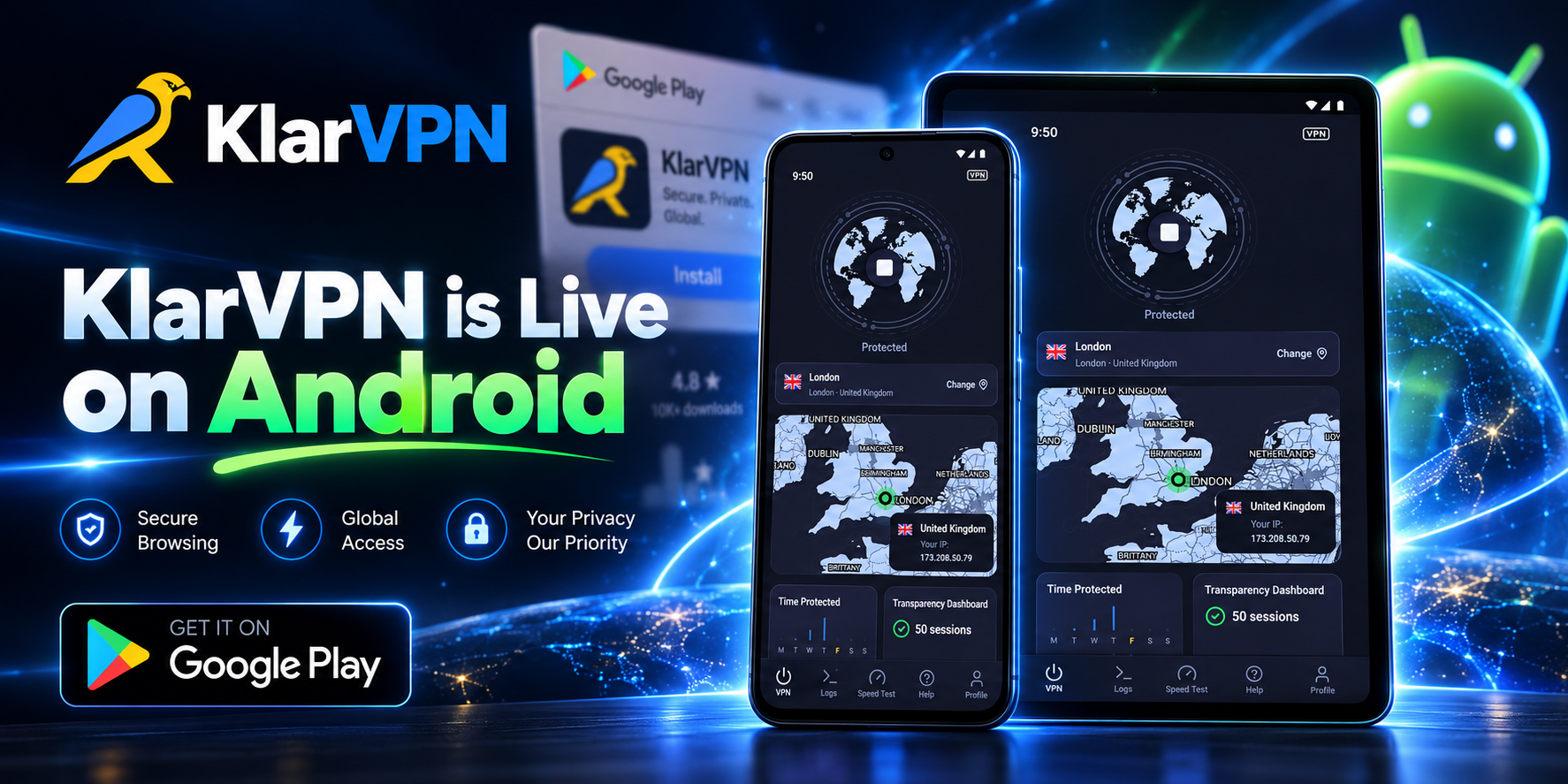
    KlarVPN is now available on Android.

    That means Android users can now download KlarVPN, connect through their own encrypted tunnel, and see what their VPN actually knows about them.

    But Android is not short of VPN apps.

    Search Google Play, and you will find hundreds of them.

    So the question was never:

    Can we put another VPN on Android?

    The better question was:

    Can we build one that gives Android users more control over the trust they are being asked to give it?

    That is what KlarVPN is designed to do.

    Your own encrypted tunnel. A Transparency Dashboard you can actually open. Respin when you want a fresh VPN-side session. No browsing-history logs. And 3 GB free every month.

    Download KlarVPN for Android

    Android Gives You Control. Your VPN Should Respect It.

    Android users are used to making choices.

    Which browser to use.
    Which apps get permissions.
    Which services can run in the background.
    Which network to connect to.

    A VPN is different from most apps because it sits directly in the path of your internet connection.

    That deserves more scrutiny, not less.

    KlarVPN was built around one simple idea:

    You should not have to trust a VPN blindly just because the screen says “Protected.”

    That is why KlarVPN gives you visibility into the connection and the information associated with your account.

    Not just a shield icon.

    Not just a privacy claim.

    Something you can actually inspect.

    What Happens When You Turn KlarVPN On?

    When you tap Connect, KlarVPN creates an encrypted VPN tunnel between your Android device and the KlarVPN infrastructure.

    Traffic routed through that connection travels inside the encrypted tunnel before continuing to the internet.

    That matters because your Android phone does much more online than browse Chrome.

    It runs:

    • Messaging apps
    • Email
    • Shopping apps
    • Banking apps
    • Travel apps
    • Work tools
    • Streaming apps
    • Browsers

    KlarVPN operates at the Android VPN connection level rather than working as a browser-only extension.

    So supported traffic from apps using that connection can travel through the VPN tunnel too.

    “Allow VPN Connection?” Yes, Android Is Supposed to Ask.

    The first time you connect, Android will display a system message asking you to allow KlarVPN to create a VPN connection.

    That is normal.

    Android requires user approval before a VPN application can establish its VPN service. The app cannot silently turn itself into your VPN in the background without that consent.

    You approve the connection once so KlarVPN can create the network interface used for the encrypted tunnel.

    This permission is about routing your internet connection through the VPN.

    It is not the same as giving KlarVPN access to your photos, contacts, messages, or camera.

    That distinction is worth understanding before you tap Allow.

    One Session. One Encrypted Tunnel.

    A lot of VPN language becomes unnecessarily complicated.

    Here is the KlarVPN model in plain English.

    When you connect, your session gets its own isolated encrypted tunnel and its own session keys.

    Your traffic is not placed inside another user’s VPN tunnel.

    The public VPN IP can still be shared.

    That is important because a dedicated tunnel is not the same thing as a dedicated IP address.

    What is isolated is your VPN session and the encryption protecting it.

    Think of it as:

    Your Android device → your encrypted tunnel → selected KlarVPN location → internet

    That private tunnel is one of the core differences behind KlarVPN.

    The Screen Says Protected. The Dashboard Tells You More.

    The easiest thing for a VPN to do is display:

    Connected.

    The harder part is telling you what happens behind that message.

    KlarVPN’s Transparency Dashboard gives you visibility into the information associated with your account.

    You can see things such as your sessions and bandwidth usage.

    What you will not find stored as activity history includes:

    • Browsing history
    • DNS-query history
    • Destination IP logs
    • Contents of your internet traffic
    • Behavioural profiles created from your browsing

    KlarVPN still needs to measure total bandwidth because usage allowances exist on the plans.

    The difference is that bandwidth metering does not require us to build a record of where you went online.

    We count usage. Not destinations.

    That is the kind of distinction we think a privacy product should make clear.

    Respin When You Want a Fresh Tunnel

    Changing a server and rebuilding a VPN session are not the same thing.

    KlarVPN’s Respin feature is designed for the second case.

    When you Respin:

    1. Your current VPN tunnel is torn down.
    2. A fresh tunnel is created.
    3. New session keys are generated.
    4. Your VPN IP changes.
    5. The VPN-side tunnel fingerprint is refreshed.

    That gives the KlarVPN side of your connection a fresh start.

    What Respin does not do is erase everything websites or apps may already know about you.

    It does not remove:

    • Browser cookies
    • Account logins
    • App identifiers
    • Device identifiers
    • Information you entered into websites
    • Other forms of browser or device fingerprinting

    Respin refreshes your KlarVPN tunnel, not your entire online identity.

    Your Phone Changes Networks All Day

    One minute you are on home Wi-Fi.

    Then 5G.

    Then office Wi-Fi.

    Later, a coffee shop.

    Then an airport hotspot.

    Your Android phone handles those transitions almost without you noticing.

    Privacy tools should be designed for the same reality.

    Auto-Connect

    Auto-Connect can help KlarVPN activate protection when your device joins a network you have not marked as trusted.

    That means one less thing to remember every time your phone finds new Wi-Fi.

    Kill Switch

    If the VPN connection unexpectedly drops, Kill Switch helps stop internet traffic from continuing outside the protected tunnel.

    These features matter more on mobile because your network environment changes much more frequently than it does on a desktop sitting in one place.

    Free VPN Should Have a Clear Business Model

    There are plenty of free VPN apps for Android.

    Before installing one, there is a useful question to ask:

    If I am not paying for this service, how is it being funded?

    A VPN requires servers, bandwidth, software development, and maintenance.

    “Free” does not make those costs disappear.

    KlarVPN keeps the model straightforward.

    The Free plan gives you:

    3 GB Every Month

    And you still get the core KlarVPN privacy experience.

    KlarVPN Free Included
    Private encrypted tunnel Yes
    Transparency Dashboard Yes
    Kill Switch Yes
    Auto-Connect Yes
    Respin Yes
    Browsing-history logging No
    Ads No
    Behavioral tracking No
    Monthly VPN usage 3 GB

    The free-plan limitation is the amount of data.

    It is not an excuse to turn the user’s activity into the business model.

    If 3 GB is enough for you, use it.

    If you need more later, paid plans increase the usage allowance.

    Start With KlarVPN Free

    Google Play Gives You More Information Before You Install

    VPN apps deserve extra scrutiny because of the position they occupy in your network connection.

    Google Play’s Data Safety section is designed to help users review how developers say an app collects, shares, and secures data before installing it. Google has also introduced additional security-review visibility specifically for VPN applications.

    That is a good habit regardless of which VPN you choose:

    Read the privacy information before tapping Install.

    Look at what the app says it collects.

    Check what permissions it wants.

    Understand how the company makes money.

    Then compare those claims with what the product actually does.

    KlarVPN’s Transparency Dashboard extends that idea beyond the Play Store listing.

    You should still be able to ask questions after the app is installed.

    From Google Play to Protected

    KlarVPN does not require a manual VPN configuration.

    1. Get KlarVPN From Google Play

    Install the Android app on your phone or tablet.

    2. Open Your Account

    Sign in or create a KlarVPN account.

    3. Pick a Location

    Choose the KlarVPN location you want to connect through.

    4. Tap Connect

    Approve Android’s VPN connection request when it appears.

    5. Check Your Dashboard

    Once connected, open the Transparency Dashboard and see what information KlarVPN actually keeps.

    You can go from download to an encrypted VPN connection without configuring servers, importing files, or manually managing encryption keys.

    Download KlarVPN on Google Play

    What KlarVPN Changes, and What It Doesn’t

    VPN marketing sometimes makes privacy sound absolute.

    It is not.

    When KlarVPN is connected, it can help:

    • Encrypt traffic between your Android device and KlarVPN
    • Hide your real network IP from websites
    • Add privacy on public or unfamiliar Wi-Fi
    • Reduce what the local network can directly observe about your connection
    • Give you another VPN location for your internet traffic
    • Protect traffic from apps routed through the VPN connection

    But KlarVPN cannot make everything you do anonymous.

    A VPN cannot stop a website from knowing who you are when you sign into your account.

    It cannot remove cookies already stored on your device.

    It cannot make a malicious Android app trustworthy.

    It cannot protect you when you voluntarily give credentials to a phishing page.

    It cannot eliminate every form of fingerprinting.

    A VPN protects an important part of the connection.

    It should not pretend to be every privacy and security tool at once.

    KlarVPN Is Now Live on Android

    You waited.

    Android is here.

    Download KlarVPN from Google Play, create your encrypted tunnel, and open the Transparency Dashboard for yourself.

    3 GB free every month.

    No ads.

    No browsing-history logs.

    Your own encrypted tunnel.

    Privacy you can see.

    KlarVPN. Stay Private.

    Download KlarVPN for Android

    Frequently Asked Questions

    Is KlarVPN available on Android?

    Yes. KlarVPN is now available for Android.

    Is KlarVPN free for Android?

    Yes. KlarVPN includes a Free plan with 3 GB of VPN usage every month. Free users still receive the core privacy features, including a private encrypted tunnel and Transparency Dashboard.

    Why does Android ask me to allow KlarVPN to create a VPN connection?

    Android requires users to approve a VPN application’s connection request before the app can establish its VPN service. KlarVPN needs that permission so it can create the encrypted network connection used by the VPN.

    Does KlarVPN protect apps or only Chrome?

    KlarVPN works through Android’s VPN connection rather than only inside a browser. Traffic from apps routed through the VPN connection can therefore travel through the encrypted tunnel.

    Does KlarVPN work over 5G and mobile data?

    Yes. A VPN can work over cellular data as well as Wi-Fi. Your mobile carrier still provides the underlying internet connection, while KlarVPN adds the VPN tunnel over it.

    What is a dedicated private tunnel?

    It means your KlarVPN session receives its own isolated encrypted tunnel and session keys. Your public VPN IP may still be shared, so a private tunnel should not be confused with a dedicated public IP address.

    What information does KlarVPN store?

    KlarVPN measures information necessary to operate the service, including sessions and total bandwidth usage. It does not retain browsing history, DNS-query history, destination IP logs, or behavioural profiles based on browsing.

    Does KlarVPN show ads on the Free plan?

    No. KlarVPN’s Free plan is ad-free.

    Can KlarVPN make my Android completely anonymous?

    No. A VPN cannot guarantee complete anonymity. Websites and apps may still recognise you through logins, cookies, device identifiers, browser fingerprinting, and other information you provide.

  • KlarVPN for iPhone is Live Now

    KlarVPN for iPhone is Live Now

    KlarVPN is now available on the App Store for iPhone and iPad.

    But we did not build another VPN app just to add one more Connect button to your phone.

    KlarVPN was built around a different idea:

    If a VPN asks you to trust it with your privacy, you should be able to see what it knows about you.

    That is why KlarVPN combines your own encrypted VPN tunnel with a live Transparency Dashboard that shows what data exists about your account.

    No blind trust.

    Just privacy you can see.

    Download KlarVPN for iPhone

    So, What Makes KlarVPN Different on iPhone?

    Most VPN apps follow a familiar model.

    You download the app.
    Choose a server.
    Tap connect.

    Then the VPN tells you that your connection is private.

    KlarVPN does those basic things too, but we wanted to solve the question that comes next:

    What happens after you trust the VPN?

    KlarVPN gives you more visibility into the connection itself.

    Every account gets:

    • Its own encrypted VPN tunnel
    • Live Transparency Dashboard
    • Kill Switch
    • Auto-Connect
    • Respin
    • No browsing-history logging
    • No DNS-query logging
    • No destination-IP logging
    • No ads
    • 3 GB free every month

    Here is how those features work.

    Your Own Encrypted VPN Tunnel

    When you connect to KlarVPN, your session gets its own isolated encrypted tunnel with its own session keys.

    Your traffic is not mixed into another user’s VPN tunnel.

    That does not mean you receive a permanent dedicated public IP address. Public VPN IPs can still be shared.

    The important difference is the tunnel itself.

    Your encrypted connection and session keys are isolated from other users.

    It is a simpler idea than it sounds:

    Your connection gets its own private path through the VPN.

    See What KlarVPN Knows About You

    “No logs” is one of the most common claims in the VPN industry.

    The problem is that users usually have no way to see what sits behind that promise.

    KlarVPN takes a different approach.

    Open the Transparency Dashboard, and you can see the information KlarVPN maintains for your account.

    KlarVPN counts total bandwidth usage because plans have usage limits. While you are connected, limited connection information is also required to keep the session running.

    What KlarVPN does not keep as browsing records includes:

    • Websites you visit
    • Browsing history
    • DNS queries
    • Destination IP logs
    • Contents of your VPN traffic
    • Behavioral profiles

    You should not need to guess what your VPN knows.

    You should be able to check.

    Want a Fresh Tunnel? Respin It.

    Changing VPN servers usually changes where your traffic exits.

    KlarVPN’s Respin goes further.

    When you Respin, the current tunnel is torn down, and a fresh one is created with:

    • Fresh session keys
    • A new VPN IP
    • A refreshed tunnel fingerprint

    It is not simply another server-switch button.

    It gives the VPN side of your connection a fresh start.

    This does not erase browser cookies, account logins, device identifiers, or other information websites may use to recognise you. Respin refreshes the KlarVPN tunnel, not your entire digital identity.

    Built for the Way Your iPhone Actually Connects

    Your iPhone rarely stays on one network all day.

    You might start on home Wi-Fi, move to cellular data, join an office network, connect at a coffee shop, and later use airport or hotel Wi-Fi.

    KlarVPN is designed around that reality.

    Auto-Connect

    Auto-Connect can activate VPN protection when your iPhone joins a network you have not marked as trusted.

    You do not have to remember to open the VPN every time your network changes.

    Kill Switch

    If the protected tunnel unexpectedly drops, Kill Switch helps prevent your internet traffic from simply continuing outside the VPN connection.

    Together, the two features help reduce the gaps that can happen when mobile devices constantly move between networks.

    Free Means Free. Not Ad-Supported.

    A free privacy product should not need to make your activity the product.

    KlarVPN’s Free plan includes 3 GB every month.

    And free users still get the core privacy experience:

    Free KlarVPN Includes Available
    Private encrypted tunnel Yes
    Transparency Dashboard Yes
    Kill Switch Yes
    Auto-Connect Yes
    No activity logs Yes
    No ads Yes
    No tracking Yes
    Monthly VPN data 3 GB

    No credit card is required to start using the free plan.

    If you need more data later, paid plans are available.

    CTA: Try KlarVPN Free

    KlarVPN Works on iPhone and iPad

    KlarVPN is available for both iPhone and iPad.

    Your account is not limited to a single device, so you can use KlarVPN across the supported devices you use without buying a separate account for each one.

    That means the same privacy model follows you from your phone to your tablet:

    Your own tunnel. Your dashboard. Your privacy controls.

    How to Start Using KlarVPN on iPhone

    Getting connected only takes a few steps.

    1. Download KlarVPN

    Find KlarVPN in the Apple App Store and install it on your iPhone or iPad.

    2. Sign In

    Create your KlarVPN account or sign in if you already have one.

    3. Choose a VPN Location

    Select the location you want to connect through.

    4. Tap Connect

    iOS will ask you to approve the VPN configuration the first time.

    Once approved, KlarVPN creates your encrypted tunnel.

    5. Open the Transparency Dashboard

    Once connected, open the dashboard and see what KlarVPN actually stores about your account.


    Download KlarVPN on the App Store

    What KlarVPN Can Protect on Your iPhone

    A VPN encrypts traffic travelling between your iPhone and the VPN service.

    That makes KlarVPN particularly useful when you:

    • Connect to public Wi-Fi
    • Use airport or hotel networks
    • Want websites to see a VPN IP instead of your real network IP
    • Move frequently between Wi-Fi and cellular data
    • Want more privacy from the local network you are using

    But a VPN is not an invisibility button.

    KlarVPN cannot prevent a website from recognising you when you log into your account. It cannot remove cookies already stored in your browser, stop every form of browser fingerprinting, protect you from phishing, or secure a compromised device.

    VPN privacy works best as one layer of a broader privacy and security setup.

    Why We Built KlarVPN This Way

    The hardest part of choosing a VPN is not finding one that says the right things.

    Almost every provider can tell you:

    “We don’t log.”

    “We protect your privacy.”

    “Trust us.”

    We wanted to remove as much of that trust gap as possible.

    That is why KlarVPN gives every user a private encrypted tunnel and puts the information we retain directly in front of them through the Transparency Dashboard.

    You can see your sessions.

    You can see your usage.

    And you can see just how little else there is to see.

    Privacy should not disappear behind a Connect button.

    KlarVPN for iPhone Is Available Now.

    KlarVPN is live on the App Store for iPhone and iPad.

    Start with 3 GB free every month, connect through your own encrypted tunnel, and open the Transparency Dashboard for yourself.

    No ads.

    No browsing-history logs.

    No blind trust.

    KlarVPN. Stay Private.

    Download KlarVPN for iPhone

    Frequently Asked Questions

    Is KlarVPN available for iPhone?

    Yes. KlarVPN is available through the Apple App Store for both iPhone and iPad.

    Is KlarVPN free on iPhone?

    Yes. KlarVPN includes a Free plan with 3 GB of VPN usage every month. The free plan includes the private encrypted tunnel, Transparency Dashboard, Kill Switch, and Auto-Connect without ads or activity tracking.

    Does KlarVPN work on iPad?

    Yes. The KlarVPN iOS app supports both iPhone and iPad.

    What does KlarVPN store?

    KlarVPN counts total bandwidth usage to enforce plan allowances. Limited connection metadata is temporarily required while a VPN session is active. KlarVPN does not keep browsing history, DNS queries, destination IP logs, or the contents of your VPN traffic.

    What is a dedicated private tunnel?

    A dedicated private tunnel means your KlarVPN session gets an isolated encrypted tunnel and session keys rather than sharing another user’s tunnel. It does not mean you receive a permanent dedicated public IP address.

    Does KlarVPN work on Wi-Fi and mobile data?

    Yes. KlarVPN can protect your connection while your iPhone or iPad uses Wi-Fi or cellular data.

  • Should You Use a VPN for Online Banking?

    Should You Use a VPN for Online Banking?

    Yes, you can use a VPN for online banking, especially when you are on public Wi-Fi, traveling, or using a network you do not fully trust.

    A VPN helps protect your connection by creating an encrypted tunnel between your device and the VPN service. This makes it harder for people on the same network to see or interfere with your activity at the network level.

    But there is one important detail:

    A VPN is useful for online banking, but it does not replace safe banking habits.

    It can help protect your connection.
    It can help hide your real IP address.
    It can reduce risk on public Wi-Fi.

    But it cannot stop phishing, fake banking apps, weak passwords, malware, or mistakes like entering your login details on a fake website.

    The safest approach is simple:

    Use a VPN when banking on public Wi-Fi, but also use the official bank app, strong passwords, two-factor authentication, HTTPS, and a trusted device.

    If you are at an airport, hotel, cafe, mall, or coworking space, turn on your VPN before opening your banking app or website.

    For public network safety in general, read Should You Use a VPN on Public Wi-Fi?

    Why Online Banking Requires Extra Caution

    Online banking is one of the most sensitive things you do online.

    You are not just reading content or browsing casually. You may be checking balances, moving money, paying bills, entering passwords, approving transfers, or viewing personal financial details.

    That makes banking different from normal browsing.

    If something goes wrong, the risk is higher.

    The main risks include:

    Stolen login details
    Fake banking websites
    Fake banking apps
    Public Wi-Fi snooping
    Phishing messages
    Malware on your device
    Weak or reused passwords
    Someone looking over your shoulder
    Account alerts from unusual locations

    Most banks already use strong security. Banking websites and apps usually use encryption, fraud detection, and account monitoring.

    But you still control the device, network, password, and browsing behaviour.

    That is where a VPN can help as one privacy layer.

    It does not replace your bank’s security. It adds protection around your connection.

    How a VPN Helps With Online Banking

    A VPN helps protect online banking mainly by protecting the connection between your device and the VPN server.

    This is especially useful when you are not on a trusted network.

    It Encrypts Your Connection on Public Wi-Fi

    Public Wi-Fi is shared.

    At airports, hotels, cafes, universities, and malls, many people may be connected to the same network. You usually do not know who manages it or how secure it is.

    A VPN encrypts your traffic before it moves across the network.

    That means the Wi-Fi owner or someone abusing the local network should not be able to easily inspect your banking activity inside the VPN tunnel.

    It Helps Hide Your Real IP Address

    When you use a VPN, websites usually see the VPN connection instead of your real IP address.

    This can reduce direct exposure of your real network location and internet provider.

    For online banking, this can be useful when you are traveling or connecting from public networks.

    It Reduces Local Network Snooping

    If you are on a shared Wi-Fi network, a VPN helps reduce what others on that network can see.

    This matters when you are checking bank accounts, opening financial apps, or entering personal information.

    It Adds Protection Before You Log In

    The best time to turn on a VPN is before you open your banking app or website.

    Do not wait until after you enter your password.

    Connect to the network.
    Turn on your VPN.
    Open your banking app or official bank website.

    That order is safer.

    When Banks May Flag VPN Usage

    A VPN can help protect your connection, but banks may sometimes treat VPN usage as unusual.

    This does not mean the VPN is unsafe.

    It usually means the bank is trying to protect your account.

    Banks may flag VPN usage because your visible location or IP address can change. If your bank normally sees you logging in from one city or country, and suddenly sees a different location, its security system may ask for extra verification.

    You may see:

    Extra login verification
    One-time passcode request
    Security question
    Temporary login block
    Suspicious activity alert
    Account confirmation email
    Request to verify your device

    This can also happen when you travel, use a new device, clear cookies, switch networks, or log in from a new browser.

    What to do if your bank flags your VPN

    Do not panic.

    Use the bank’s official verification method.

    Open the official banking app or type the bank’s website address yourself.

    Avoid clicking links from random emails or texts claiming there is an urgent banking problem.

    If the bank blocks VPN access completely, use mobile data or a trusted private network instead of turning off your VPN on public Wi-Fi for sensitive activity.

    The goal is not to force the VPN at all costs.

    The goal is to bank safely.

    Should You Bank on Public Wi-Fi With a VPN?

    If possible, avoid banking on public Wi-Fi and use mobile data instead.

    Mobile data is often a better option because you are not joining a shared local network.

    But sometimes you may need to bank while travelling, waiting at an airport, sitting in a hotel lobby, or working from a cafe.

    In that case, using a VPN is better than banking on public Wi-Fi unprotected.

    Here is the safer approach:

    Confirm the Wi-Fi network name.
    Avoid suspicious captive portals.
    Turn on your VPN before banking.
    Use the official bank app or typed website address.
    Check HTTPS if using a browser.
    Use two-factor authentication.
    Avoid banking if the network feels suspicious.
    Log out when finished.

    If you travel often, read Is Airport Wi-Fi Safe? before banking or working at airports.

    What a VPN Cannot Protect During Online Banking

    A VPN is helpful, but it does not protect against every banking risk.

    This is where users need a realistic answer.

    A VPN Cannot Stop Phishing

    A VPN cannot tell whether a website is fake.

    If you click a fake banking link and enter your password, the VPN cannot undo that.

    Always open your bank from the official app or by typing the website address yourself.

    A VPN Cannot Protect a Compromised Device

    If your phone or laptop has malware, a VPN cannot make it safe.

    Keep your device updated and avoid installing unknown apps or files.

    A VPN Cannot Fix Weak Passwords

    If your banking password is weak or reused, a VPN will not protect the account from password-based attacks.

    Use a strong, unique password for your bank.

    A VPN Cannot Stop Fake Banking Apps

    A VPN does not verify whether an app is legitimate.

    Only download banking apps from the official app store, and confirm the developer name before installing.

    A VPN Cannot Hide What You Share With Your Bank

    If you log into your bank, the bank knows it is you.

    That is normal.

    A VPN can protect your connection and hide your real IP from direct exposure, but it does not make you anonymous to your bank.

    For a simple privacy breakdown, read What Does a VPN Hide?

    Online Banking Safety Checklist

    Use this checklist before logging into your bank account.

    1. Use the Official Bank App or Website

    The safest habit is to use your bank’s official app.

    If you use a browser, type the website address yourself.

    Do not click banking links from random emails, texts, ads, or social media messages.

    2. Check HTTPS

    If you use a browser, make sure the website uses HTTPS.

    A VPN helps protect your connection, but HTTPS is still important for secure communication with the bank website.

    3. Turn On Two-Factor Authentication

    Two-factor authentication adds a second step before someone can access your account.

    Use your bank’s strongest available option.

    4. Use a Strong Password

    Do not reuse your banking password anywhere else.

    A bank password should be unique, long, and hard to guess.

    5. Avoid Unknown Public Wi-Fi

    If the Wi-Fi name looks suspicious, do not use it for banking.

    Use mobile data instead.

    6. Turn On Your VPN Before Banking

    If you must use public Wi-Fi, turn on your VPN before opening the banking app or website.

    7. Watch Your Screen

    Banking security is not only digital.

    If you are in an airport, cafe, train station, or hotel lobby, make sure nobody nearby can see your screen or keyboard.

    8. Log Out When Finished

    After banking, log out of the app or website.

    This is especially important on shared or public networks.

    9. Keep Your Device Updated

    Install updates for your phone, laptop, browser, and banking app.

    Updates often fix security problems.

    VPN for Online Banking: Good vs Risky Situations

    Situation Should You Use a VPN? Better Choice
    Banking on home Wi-Fi Optional Use trusted Wi-Fi, strong password, 2FA
    Banking on airport Wi-Fi Yes VPN first, or use mobile data
    Banking at a hotel Yes VPN first, confirm network name
    Banking at a cafe Yes VPN first, avoid shoulder surfing
    Banking on mobile data Optional Usually safer than unknown public Wi-Fi
    Banking on suspicious Wi-Fi Avoid Use mobile data instead
    Banking from a shared/public computer Avoid Use your own trusted device
    Banking after clicking an email link Avoid Open the bank app or website manually

    The best rule:

    Use the safest network available. If you must use public Wi-Fi, use a VPN first.

    Can a VPN Cause Banking Problems?

    Sometimes, yes.

    A VPN can cause extra banking checks because your IP address or location may look different from usual.

    This can trigger bank security systems.

    You may need to verify your identity more often.

    This is not always a bad thing. It means the bank is watching for unusual access.

    To reduce problems:

    Use the official bank app.
    Use a consistent VPN location when possible.
    Avoid switching locations repeatedly during banking.
    Keep your phone number and recovery email updated.
    Do not use suspicious free public Wi-Fi for banking.
    Use mobile data if the bank blocks VPN traffic.

    The key is balance.

    A VPN helps protect your connection, but your bank also needs to detect unusual login behaviour.

    How KlarVPN Helps With Safer Banking on Public Networks

    KlarVPN is built for people who want privacy without blind trust.

    When you need to bank on public Wi-Fi, KlarVPN helps protect your connection through your own encrypted tunnel. That gives your banking session a safer path before traffic moves across a network you do not fully control.

    KlarVPN also includes a live transparency dashboard, so users can better understand what exists in KlarVPN’s system and what it does not keep.

    KlarVPN is built around:

    Your own encrypted tunnel
    Live transparency dashboard
    Refresh Tunnel
    Kill Switch + Auto-Connect
    No browsing history
    No IP destination logs
    No DNS queries
    No behavioural profiles

    For online banking, Kill Switch and Auto-Connect are especially useful.

    Auto-Connect helps activate VPN protection when you join a network.

    Kill Switch helps prevent traffic from leaving your device unprotected if the VPN connection drops.

    Refresh Tunnel gives users more control by rebuilding the tunnel with new encryption keys, a new IP address, and a refreshed tunnel fingerprint.

    The goal is simple:

    Sensitive browsing should not depend on blind trust.

    KlarVPN helps make the protection clearer before you log in.

    Final Answer: Should You Use a VPN for Online Banking?

    Yes, using a VPN for online banking can be a good idea, especially on public Wi-Fi or networks you do not fully trust.

    A VPN helps encrypt your connection, reduce local network snooping, and hide your real IP address from direct exposure.

    But a VPN is not a complete banking security solution.

    It cannot stop phishing, fake apps, weak passwords, malware, or unsafe login behaviour.

    For the safest online banking experience:

    Use the official bank app.
    Turn on your VPN on public Wi-Fi.
    Use HTTPS.
    Enable two-factor authentication.
    Use strong passwords.
    Keep your device updated.
    Avoid suspicious networks.
    Use mobile data when public Wi-Fi feels risky.

    Try KlarVPN before banking on public Wi-Fi and browse through your own encrypted tunnel with visible privacy, Kill Switch, Auto-Connect, and no activity logs.

    FAQs

    Is it safe to use a VPN for banking?

    Yes, it is generally safe to use a VPN for banking, especially on public Wi-Fi. A VPN helps protect your connection, but you should still use the official bank app, strong passwords, two-factor authentication, and a trusted device.

    Can banks block VPNs?

    Yes, some banks may block or flag VPN connections because the IP address or location looks unusual. If this happens, use the bank’s official verification process or switch to mobile data or a trusted private network.

    Should I use a VPN on public Wi-Fi for banking?

    Yes. If you must bank on public Wi-Fi, turn on your VPN first. If mobile data is available, that may be the safer option for sensitive banking.

    Can a VPN stop phishing?

    No. A VPN cannot stop you from entering your password on a fake banking website. Always use the official bank app or type the bank website address yourself.

    Is mobile banking safer with a VPN?

    Mobile banking can be safer with a VPN when you are using public Wi-Fi or an untrusted network. On mobile data, a VPN can still add privacy, but the most important steps are using the official app, 2FA, and a secure device.

  • Is Airport Wi-Fi Safe?

    Is Airport Wi-Fi Safe?

    Airport Wi-Fi can be useful, but you should treat it as a shared public network with extra caution.

    It is usually fine for simple browsing, checking flight updates, reading news, using maps, or messaging. But you should be more careful when logging into email, banking apps, work tools, cloud storage, or any account that contains private information.

    The main issue is simple:

    You do not fully control airport Wi-Fi.

    You may not know who manages the network, who else is connected, whether the network name is real, or how secure the setup is.

    That does not mean you should never use airport Wi-Fi. It means you should use it carefully.

    The safest habit is:

    Confirm the network name, turn on your VPN, avoid suspicious login pages, and do not handle sensitive activity unless your connection is protected.

    If you are travelling and need to connect, airport Wi-Fi is convenient. Just do not treat it like your home network.

    Why Airport Wi-Fi Needs Extra Caution

    Airports are busy, open, and full of people connecting from different devices.

    Travellers use airport Wi-Fi for many reasons:

    Checking flight status
    Messaging family
    Using maps
    Opening boarding passes
    Booking hotels
    Checking email
    Working between flights
    Streaming while waiting
    Managing banking or travel payments

    That makes airport Wi-Fi valuable, but also risky.

    Unlike your home network, airport Wi-Fi is designed for public access. Many people connect for a short time, and you usually do not know what security controls are in place.

    The risk is not always that someone is actively attacking you.

    The risk is that the environment is shared, crowded, and hard to verify.

    For a broader guide, read Should You Use a VPN on Public Wi-Fi?

    Common Airport Wi-Fi Risks

    Airport Wi-Fi has many of the same risks as other public Wi-Fi networks, but travel makes users more vulnerable because they are often tired, rushed, distracted, or trying to solve urgent problems.

    Fake Wi-Fi Network Names

    One of the biggest airport Wi-Fi risks is connecting to the wrong network.

    A fake hotspot may use a name that looks official, such as:

    Airport Free Wi-Fi
    Terminal Guest Wi-Fi
    Free Airport Internet
    Airport Lounge Wi-Fi

    If you connect to a fake network, your traffic may pass through a network controlled by someone else.

    Before joining airport Wi-Fi, always confirm the official network name from airport signage, staff, airline lounge information, or the airport’s official website.

    Crowded Networks

    Airport Wi-Fi can become crowded quickly.

    Hundreds or thousands of people may connect during busy hours. Crowded networks can create slow speeds, connection drops, and unstable browsing.

    Crowding is not only annoying. It can also make users rush through security warnings, captive portal screens, or login pages without thinking.

    Slow Wi-Fi makes people careless.

    And careless browsing is where many privacy mistakes happen.

    Captive Portals

    Many airports use captive portals. These are the pages that appear before you can access the internet.

    They may ask you to accept terms, enter an email, watch an ad, or choose a free session.

    Captive portals are common, but you should be careful if the page asks for too much information.

    Be cautious if a captive portal asks for:

    Payment card details for “free” access
    Unnecessary personal information
    App installation
    Unusual permissions
    Account passwords
    Social media login
    Security certificate installation

    A normal Wi-Fi access page should not ask for sensitive information just to let you browse.

    Shoulder Surfing

    Airport security is not only digital.

    Airports are crowded places. People may be sitting close to you, standing behind you, or walking past while you use your phone or laptop.

    If you open banking apps, work dashboards, private emails, or password managers in public, someone nearby may see your screen.

    A VPN cannot stop shoulder surfing.

    Use a privacy screen, lower your brightness, avoid opening sensitive pages in crowded areas, and be aware of who can see your device.

    Rushed Travel Decisions

    Travel creates pressure.

    You may need to book a hotel quickly, pay for baggage, check a work message, or fix a missed connection.

    That urgency makes people more likely to click the first network, accept the first portal, or ignore browser warnings.

    Slow down before connecting.

    A few seconds of checking can prevent a bigger privacy problem.

    What You Can Safely Do on Airport Wi-Fi

    Airport Wi-Fi is not automatically dangerous. Many everyday activities are low risk if you use basic precautions.

    You can usually use airport Wi-Fi for:

    Checking flight status
    Reading news
    Browsing general websites
    Using maps
    Checking airport services
    Messaging friends or family
    Streaming entertainment
    Downloading non-sensitive travel information

    These activities are lower risk because they do not always involve private account access or sensitive data.

    Still, it is smart to turn on a VPN before browsing.

    A VPN helps protect your connection and reduces what the local network can see.

    If you want to understand exactly how VPN protection works, read Does a VPN Protect You on Public Wi-Fi?

    What to Avoid on Airport Wi-Fi

    Some activities need more care on airport Wi-Fi.

    Avoid or delay sensitive activity if the network feels suspicious, the captive portal looks strange, or you cannot verify the Wi-Fi name.

    Be careful with:

    Online banking
    Work admin dashboards
    Cloud storage
    Password manager access
    Sensitive email
    Payment forms
    Crypto wallets
    Government portals
    Private documents
    Remote work systems

    If you must use these services, turn on your VPN first, use the official app or correct website, check HTTPS, and make sure nobody nearby can see your screen.

    For banking specifically, read Should You Use a VPN for Online Banking?

    The rule is simple:

    The more sensitive the activity, the more careful you should be.

    Why Using a VPN at the Airport Helps

    A VPN helps protect your connection by creating an encrypted tunnel between your device and the VPN service.

    That tunnel helps reduce what the airport Wi-Fi network, Wi-Fi owner, or someone abusing the local network can see.

    When your VPN is on, the local network may still see that your device is connected and using data, but it should not see your browsing activity in the same direct way.

    A VPN can help with:

    Protecting traffic on shared airport Wi-Fi
    Reducing local network snooping
    Hiding your real IP address from websites
    Adding a privacy layer before you open accounts
    Making public Wi-Fi safer for travel use

    A VPN does not make airport Wi-Fi completely safe.

    It does not stop phishing, fake websites, malware, weak passwords, or someone looking over your shoulder.

    But it is one of the easiest protections to turn on before using airport Wi-Fi.

    The best time to enable it is before you start browsing, not after.

    Airport Wi-Fi Safety Checklist Before Your Flight

    Use this quick checklist before connecting at the airport.

    1. Confirm the Official Wi-Fi Name

    Do not connect to a network just because it looks real.

    Check signs, airport information screens, airline lounge instructions, or ask staff.

    Fake network names can look convincing.

    2. Avoid Unknown Hotspots

    If you see several similar network names, be careful.

    For example:

    Airport_Free_WiFi
    Airport WiFi 5G
    Free Airport Guest
    Airport Public Internet

    Do not guess. Confirm the correct one.

    3. Turn On Your VPN First

    After joining the correct network, turn on your VPN before opening email, banking, work tools, or personal accounts.

    Make this your default airport habit.

    4. Check the Captive Portal Carefully

    If the Wi-Fi login page asks for strange information, stop.

    A basic airport Wi-Fi page may ask you to accept terms. It should not need your bank details, account passwords, or unnecessary permissions.

    5. Use HTTPS Websites

    Before entering passwords or payment details, check that the website is using HTTPS.

    A VPN helps protect your connection, but you should still avoid unsafe websites.

    6. Turn Off Auto-Join

    Do not let your device automatically reconnect to airport networks later.

    Turn off auto-join for public networks after using them.

    7. Avoid Sensitive Activity if You Are Unsure

    If the Wi-Fi behaves strangely, pages redirect too much, or the network name feels suspicious, use mobile data instead.

    8. Watch Your Screen

    Be careful when typing passwords, opening private documents, or checking banking apps in crowded areas.

    Digital privacy and physical privacy both matter at airports.

    Airport Wi-Fi vs Mobile Data vs Personal Hotspot

    If you are unsure about airport Wi-Fi, you have other options.

    Option Best For Main Concern
    Airport Wi-Fi General browsing, flight updates, waiting time Shared network and fake hotspot risk
    Mobile data Safer quick browsing and personal accounts Roaming cost or weak signal
    Personal hotspot Laptop work through your own mobile connection Battery and data usage
    Offline downloads Entertainment and documents without network risk Needs preparation before travel

    Mobile data is often safer than unknown airport Wi-Fi because you are not joining a shared local network.

    A personal hotspot can also be better for work if you need a more controlled connection.

    But airport Wi-Fi is still useful when used carefully with a VPN.

    When Airport Wi-Fi Is Probably Fine

    Airport Wi-Fi is usually fine when:

    You confirm the official network name
    You only browse general websites
    You avoid suspicious captive portals
    You do not enter sensitive information
    You turn on a VPN before using accounts
    You do not ignore browser warnings
    You use HTTPS websites
    You keep your device updated

    In other words, airport Wi-Fi is manageable when you treat it as public.

    The danger comes from treating it like a trusted private network.

    When You Should Avoid Airport Wi-Fi

    Avoid airport Wi-Fi when:

    You cannot verify the network name
    The captive portal looks suspicious
    The connection redirects strangely
    The page asks for too much information
    You need to access highly sensitive accounts
    You are handling confidential work files
    You are making urgent financial transactions
    Your VPN will not connect
    Your device is outdated or already acting strangely

    In these cases, use mobile data, a personal hotspot, or wait until you are on a safer connection.

    How KlarVPN Helps on Airport Wi-Fi

    KlarVPN is built for people who want privacy without blind trust.

    Before joining airport Wi-Fi, you can turn on KlarVPN and protect your connection through your own encrypted tunnel.

    KlarVPN also includes a live transparency dashboard, so users can better understand what exists in KlarVPN’s system and what it does not keep.

    For airport use, Auto-Connect and Kill Switch are especially useful.

    Auto-Connect helps activate VPN protection when you join a network.

    Kill Switch helps block traffic if your VPN connection drops, reducing the chance of accidental exposure.

    Refresh Tunnel gives users more control by rebuilding the tunnel with new encryption keys, a new IP address, and a refreshed tunnel fingerprint.

    The goal is simple:

    Airport Wi-Fi should not force you to browse unprotected.

    KlarVPN gives travellers a clearer way to stay private before they connect.

    Final Answer: Is Airport Wi-Fi Safe?

    Airport Wi-Fi can be safe enough for simple browsing, flight updates, messaging, and general use if you take basic precautions.

    But you should treat it as a shared public network, not a private connection.

    The biggest risks are fake hotspot names, crowded networks, suspicious captive portals, shoulder surfing, and unsafe login behaviour.

    Use airport Wi-Fi carefully:

    Confirm the network name.
    Turn on your VPN first.
    Avoid sensitive activity if the network feels suspicious.
    Use HTTPS websites.
    Turn off auto-join.
    Use mobile data or a hotspot for high-risk activity.

    Before joining airport Wi-Fi, try KlarVPN free and browse through your own encrypted tunnel with visible privacy, Kill Switch, Auto-Connect, and no activity logs.

    FAQs

    Can airport Wi-Fi see my browsing?

    Airport Wi-Fi may be able to see some network-level activity if you browse without protection. A VPN helps hide browsing activity inside an encrypted tunnel, though the network may still see that your device is connected and using data.

    Should I use a VPN at the airport?

    Yes. You should use a VPN at the airport, especially before opening email, banking apps, work tools, cloud storage, or personal accounts.

    Is airport Wi-Fi safe for banking?

    It is better to use mobile data for banking if possible. If you must use airport Wi-Fi, verify the network, turn on your VPN first, use the official banking app or website, and make sure nobody can see your screen.

    How do I know if airport Wi-Fi is fake?

    Check the official network name from airport signs, airport staff, airline lounge instructions, or the airport’s website. Be careful with names that look generic or slightly different from the official one.

    Is mobile data safer than airport Wi-Fi?

    In many cases, yes. Mobile data is often safer than unknown airport Wi-Fi because you are not joining a shared local network. A VPN can still add privacy on mobile data too.

  • Dedicated VPN vs Shared VPN: What Is Better?

    Dedicated VPN vs Shared VPN: What Is Better?

    Shared VPNs are common, and many people use them every day. But dedicated VPN tunnels can offer a clearer, less crowded, and more controlled VPN experience.

    The better choice depends on what you need.

    If you only want basic IP masking for casual browsing, a shared VPN may be enough. But if you care about connection clarity, privacy visibility, fewer crowded-server concerns, and a VPN experience that feels more personal, a dedicated VPN tunnel can be a better option.

    The important thing is to understand the difference clearly.

    A shared VPN usually means many users are routed through shared VPN infrastructure. A dedicated VPN tunnel means your encrypted VPN tunnel is created for your connection.

    That does not automatically mean you get a dedicated IP address.

    A dedicated tunnel and a dedicated IP are different things.

    So the simple answer is:

    Shared VPNs are common and can work for basic privacy, but dedicated VPN tunnels are better for users who want a clearer, less crowded, and more transparent VPN experience.

    What Is a Shared VPN?

    A shared VPN is the most common type of VPN experience.

    In a shared VPN setup, many users connect through the same VPN infrastructure. They may use shared servers, shared resources, and often shared exit IP addresses.

    This is not automatically bad.

    Shared VPNs can help hide one user among many users. For some privacy use cases, that can be useful. It may also allow VPN companies to keep costs lower and offer more locations.

    But shared VPNs can also create problems when the infrastructure becomes crowded or poorly managed.

    Common shared VPN problems include:

    Slow speeds
    Unstable connections
    Repeated CAPTCHA checks
    Blocked logins
    Streaming errors
    Crowded servers
    Shared IP reputation issues
    Less clarity about how traffic is handled

    The biggest issue is not that shared VPNs exist.

    The issue is that many users do not know what they are sharing, how crowded it is, or why websites sometimes treat their VPN traffic as suspicious.

    That is why some users start looking for a private tunnel VPN or a dedicated VPN tunnel.

    What Is a Dedicated VPN Tunnel?

    A dedicated VPN tunnel is an encrypted VPN tunnel created for your connection.

    Instead of thinking of VPN access as one crowded pipe with many users mixed into the same experience, a dedicated tunnel gives your connection its own encrypted path.

    In simple words:

    A shared VPN experience can feel like a busy road.
    A dedicated VPN tunnel feels more like your own private lane.

    The tunnel protects your traffic between your device and the VPN service. It helps hide your real IP address from websites and helps reduce what your ISP, Wi-Fi owner, or local network can see.

    But again, this needs to be clear:

    A dedicated VPN tunnel is not the same as a dedicated IP address.

    A dedicated tunnel refers to the encrypted path used for your connection.

    A dedicated IP means one public IP address is assigned to one user.

    Those are different concepts.

    For a full beginner explanation, read What Is a Dedicated VPN Tunnel?

    Dedicated VPN vs Shared VPN: Quick Comparison

    Factor Shared VPN Dedicated VPN Tunnel
    Basic meaning Many users use shared VPN infrastructure Your connection gets its own encrypted tunnel
    Privacy Can be private, depending on provider Can feel clearer when paired with transparent privacy design
    Speed consistency May vary more if infrastructure is crowded Can feel more consistent when not treated like a crowded tunnel
    Server crowding More common concern Designed to reduce crowded-tunnel concerns
    Cost Often cheaper or common in free VPNs Can be premium, but KlarVPN offers it to free users
    IP reputation Shared IPs may be affected by other users Dedicated tunnel does not automatically mean a dedicated IP
    Setup Usually simple Should still be simple for the user
    Transparency Often depends on claims Stronger when combined with dashboards and clear privacy info
    Best for Casual browsing and basic VPN use Users who want clarity, control, and fewer crowded-server concerns

    The key difference is not only technical.

    It is about user experience.

    A shared VPN may work, but it can feel unclear.

    A dedicated VPN tunnel gives users a simpler way to understand how their connection is protected.

    Privacy: Which One Is Better?

    Both shared VPNs and dedicated VPN tunnels can improve privacy if they are built properly.

    A shared VPN can hide your real IP address from websites and reduce what your ISP or Wi-Fi owner can see. A dedicated VPN tunnel can do that too.

    So privacy does not depend only on whether the VPN is shared or dedicated.

    It also depends on:

    • Logging policy
    • DNS handling
    • Leak protection
    • App security
    • Kill switch
    • Transparency
    • Company trust
    • User settings
    • Browser behavior

    A shared VPN with strong privacy practices can be better than a dedicated tunnel from a provider with vague logging rules.

    At the same time, a dedicated tunnel can be easier for users to understand because the connection model is clearer.

    The best privacy setup is not just “dedicated.”

    It is:

    • A clear encrypted tunnel
    • No activity logs
    • DNS protection
    • Leak protection
    • Transparent privacy behavior
    • Safe app design
    • Simple user controls

    That is why you should not choose a VPN only by one label.

    Choose it by how clearly it protects you.

    Speed and Server Crowding

    Speed is one of the main reasons users compare dedicated VPN vs shared VPN options.

    Shared VPNs can become crowded when too many users rely on the same infrastructure. This can lead to slower browsing, unstable performance, or inconsistent results.

    But it is important to be honest:

    A dedicated VPN tunnel does not automatically guarantee faster speed.

    VPN speed depends on many things, including:

    • Your internet connection
    • Your device
    • Network congestion
    • VPN infrastructure
    • Distance to VPN routing
    • Wi-Fi quality
    • Server load
    • App performance

    A dedicated tunnel can help reduce the feeling that your connection is mixed into a crowded shared path, but no VPN should promise perfect speed all the time.

    The better way to think about it is this:

    A shared VPN may be enough for light browsing.

    A dedicated tunnel may feel better if you want a cleaner and more controlled VPN experience.

    If you are comparing free and paid VPN options, read Free VPN vs Paid VPN.

    IP Reputation and Website Blocks

    This is where many VPN users get frustrated.

    They turn on a VPN, then websites start asking for CAPTCHAs. Some logins get flagged. Some services behave differently. Some websites block access.

    This can happen for many reasons, but one common factor is IP reputation.

    When many users share the same public VPN IP address, websites may treat that IP as suspicious if it has seen abusive traffic, spam, automation, or too many login attempts.

    This can affect normal users too.

    You may not have done anything wrong, but the IP reputation may already be damaged by other activity.

    However, this is where the difference between a dedicated tunnel and a dedicated IP matters.

    A dedicated VPN tunnel does not automatically mean you get a dedicated IP.

    So if a VPN uses shared exit IPs, some IP reputation issues may still exist depending on how the provider manages traffic and infrastructure.

    A dedicated tunnel helps create a clearer encrypted connection experience.

    A dedicated IP is a separate feature.

    Do not confuse the two.

    Dedicated Tunnel vs Dedicated IP

    This section is important because many users mix these terms.

    Dedicated VPN Tunnel

    A dedicated VPN tunnel means your VPN tunnel is created for your connection.

    It is about the encrypted path.

    It helps make your VPN experience clearer, more personal, and less like a crowded shared tunnel.

    Dedicated IP

    A dedicated IP means one public IP address is assigned to one user.

    It is about the exit IP address websites see.

    A dedicated IP may be useful for users who need stable logins, business access, remote systems, or fewer shared-IP reputation issues. But it may also reduce the “crowd” privacy effect because the IP is tied more closely to one user.

    So the difference is simple:

    Term Meaning
    Dedicated VPN tunnel Your encrypted VPN tunnel is created for your connection
    Dedicated IP One public IP address is assigned to one user
    Shared IP Multiple users may use the same public exit IP
    Shared VPN Many users may use shared VPN infrastructure

    KlarVPN focuses on a dedicated tunnel experience.

    It does not need to be positioned as a dedicated IP VPN.

    The value is your own encrypted tunnel, visible privacy, and no crowded tunnel experience.

    When Shared VPNs Are Acceptable

    Shared VPNs are not automatically unsafe.

    A shared VPN may be acceptable if:

    You only need basic IP masking
    You use VPN occasionally
    You trust the VPN provider
    The VPN has a clear no-logs policy
    The servers are not overloaded
    The app has leak protection
    DNS requests are protected
    The VPN is transparent about privacy
    You do not need a more controlled tunnel experience

    For many casual users, a well-managed shared VPN can work fine.

    For example, if you only browse general websites, check news, or occasionally protect your connection on public Wi-Fi, a shared VPN may be enough.

    The problem starts when the shared experience becomes slow, crowded, blocked, or unclear.

    That is when users begin looking for a better model.

    When Dedicated VPN Tunnels Are Better

    A dedicated VPN tunnel may be better when you want more clarity and control.

    You may prefer a dedicated tunnel if:

    You use VPN daily
    You often use public Wi-Fi
    You work remotely
    You travel often
    You are tired of crowded VPN servers
    You want privacy that is easier to understand
    You do not want to rely only on a connected icon
    You want better visibility into your VPN session
    You want a VPN that explains what it does and does not keep

    Dedicated tunnels are especially useful for users who are tired of vague VPN claims.

    A VPN should not feel like a mystery.

    A dedicated tunnel gives users a simpler way to understand the connection:

    Your device connects.
    Your encrypted tunnel is created.
    Your traffic moves through that tunnel.
    Your real IP is hidden from websites.
    Your ISP or Wi-Fi owner sees less browsing activity.

    That clarity matters.

    Is a Dedicated VPN Tunnel Safer?

    A dedicated VPN tunnel can support a safer and clearer VPN experience, but safety still depends on the whole product.

    A VPN is safer when it has:

    Strong encryption
    No activity logs
    DNS protection
    Leak protection
    Kill switch
    Auto-connect
    Transparent privacy policy
    Clear company information
    Good app security
    Regular testing
    User-friendly controls

    A dedicated tunnel is one important part of the experience.

    It is not the only part.

    For example, if a VPN has a dedicated tunnel but leaks DNS, that is still a problem.

    If a VPN has a dedicated tunnel but stores browsing history, that is still a problem.

    If a VPN has a dedicated tunnel but gives users no visibility or support, that is still a problem.

    That is why you should look at the full privacy setup.

    For testing guidance, read VPN Leak Test.

    KlarVPN’s Approach: Dedicated Tunnel for Every User

    KlarVPN is built around visible privacy and a dedicated tunnel experience.

    Every KlarVPN user gets their own encrypted tunnel, including free users. That means your connection is protected through a private tunnel path instead of being treated like a crowded shared tunnel experience.

    The live transparency dashboard helps users understand what exists in KlarVPN’s system and what does not.

    Refresh Tunnel rebuilds your tunnel with new encryption keys, a new IP address, and a refreshed tunnel fingerprint. That gives users a fresh VPN-side identity without pretending to remove every browser-level tracking method.

    Kill Switch helps block traffic if your VPN connection drops.

    Auto-Connect helps activate VPN protection when you join a network.

    The idea is simple:

    KlarVPN is not built around blind trust. It is built around your own encrypted tunnel and privacy you can see.

    Decision Checklist: Dedicated VPN or Shared VPN?

    Use this checklist before choosing.

    Choose a shared VPN if:

    You only need basic VPN protection
    You use VPN occasionally
    You are comfortable with shared infrastructure
    The VPN has strong privacy practices
    The servers are not crowded
    You do not need advanced visibility
    You mainly care about simple IP masking

    Choose a dedicated VPN tunnel if:

    You want a clearer VPN experience
    You use VPN regularly
    You care about visible privacy
    You are tired of crowded VPN paths
    You want better control over your VPN session
    You use public Wi-Fi often
    You work remotely or travel
    You want privacy that is easier to understand

    Ask any VPN provider:

    Does it store browsing history?
    Does it store DNS queries?
    Does it store IP destination logs?
    Does it offer leak protection?
    Does it have a kill switch?
    Does it support auto-connect?
    Does it explain what “dedicated” means?
    Does it confuse a dedicated tunnel with a dedicated IP?
    Can users verify the connection?

    The best VPN is not just the one with the best marketing phrase.

    It is the one that gives you clear protection and explains itself honestly.

    Final Answer: Dedicated VPN vs Shared VPN

    Shared VPNs are common and can work well for basic privacy if the provider is trustworthy and the infrastructure is well managed.

    But dedicated VPN tunnels are better for users who want a clearer, less crowded, and more transparent VPN experience.

    A dedicated tunnel gives your connection its own encrypted path. It helps make VPN privacy easier to understand and can reduce concerns linked to crowded shared tunnel experiences.

    But it is not the same as a dedicated IP.

    A dedicated tunnel protects your connection.
    A dedicated IP assigns one public IP address to one user.

    Those are different.

    Choose KlarVPN if you want your own encrypted tunnel, visible privacy, Refresh Tunnel, Kill Switch + Auto-Connect, and no activity logs from the start.

    FAQs

    Is a dedicated VPN better than a shared VPN?

    A dedicated VPN tunnel can be better if you want a clearer and less crowded VPN experience. But safety also depends on logging policy, DNS protection, leak protection, app quality, and transparency.

    Is a dedicated VPN the same as a dedicated IP?

    No. A dedicated VPN tunnel is an encrypted path created for your connection. A dedicated IP is a public IP address assigned to one user. They are different features.

    Are shared VPNs unsafe?

    Shared VPNs are not automatically unsafe. A well-managed shared VPN with strong privacy practices can be safe. The concern is crowded infrastructure, unclear logging, weak transparency, or poor performance.

    Can shared VPN servers be slow?

    Yes, shared VPN servers can be slow if too many users are using the same infrastructure or if the provider does not manage capacity well. Speed also depends on your device, network, location, and VPN setup.

    What type of VPN should beginners choose?

    Beginners should choose a VPN that is simple, transparent, and easy to verify. A dedicated tunnel model can be helpful because it makes the connection easier to understand, but the VPN should also have no activity logs, leak protection, and clear privacy information.